Adjudication centre overview
The Adjudication centre brings completed independent evaluator assessments together for panel consideration. It preserves each evaluator's submitted review and records the panel's own recommendation, outcome and rationale separately.
Open the Adjudication preview.
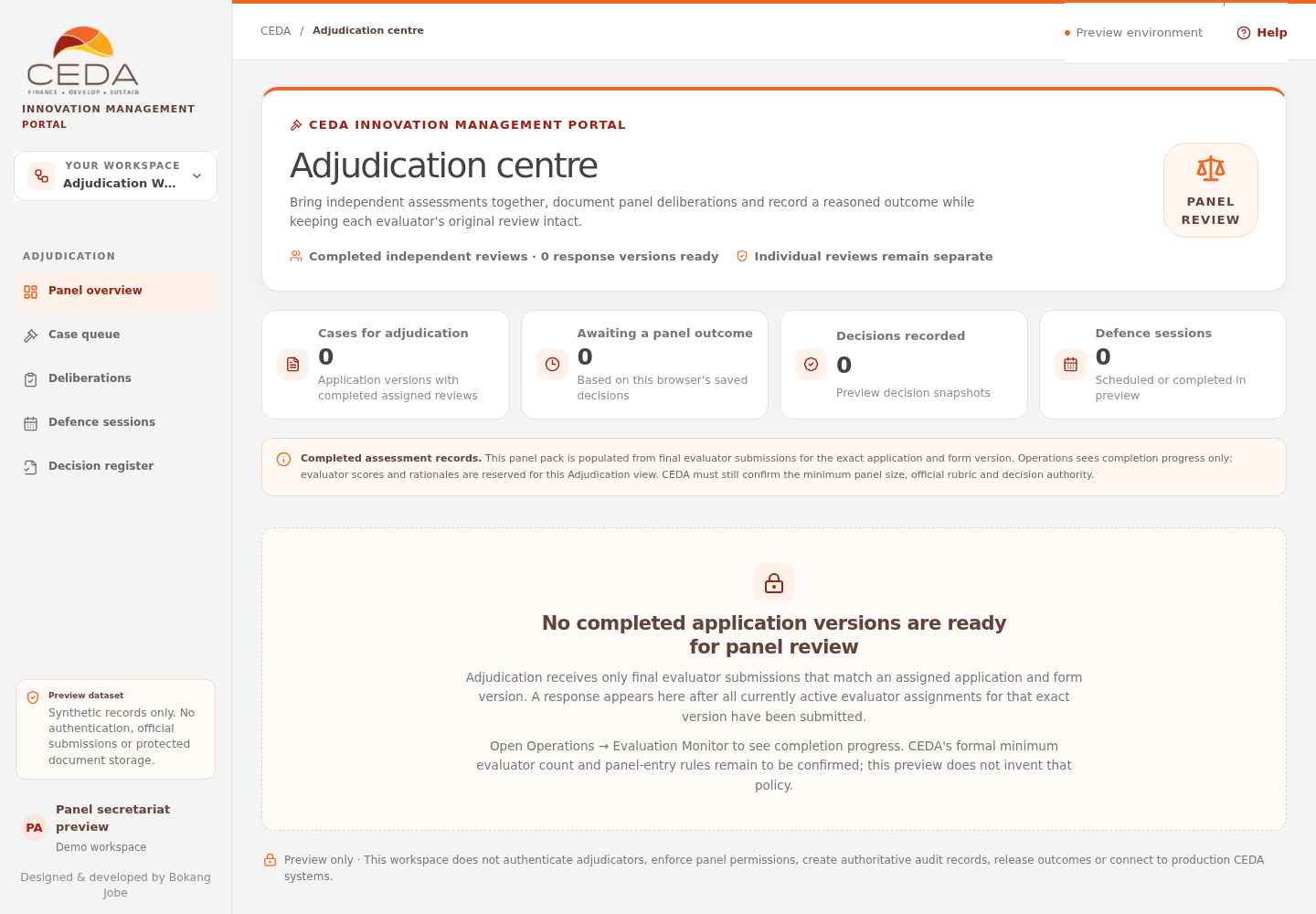
The preview does not authenticate adjudicators, enforce panel permissions, create an authoritative audit trail, release official outcomes or connect to production CEDA systems. All panel working records and decision history are stored in the current browser's local storage. Use fictional applicant cases and sample evaluations only.
1. Open the Adjudication centre
- Open the CEDA portal preview.
- Use the workspace selector in the left sidebar.
- Choose Adjudication centre.
- Confirm the Adjudication centre heading and the Cases to review panel.
- Select Help to open this guide.
The direct preview route is /ceda/adjudication.
2. Understand the panel workload
Four metric cards appear below the page heading:
| Metric | Meaning |
|---|---|
| Cases for adjudication | Application response/form versions with completed active evaluator assignments |
| Awaiting a panel outcome | Ready cases whose current panel outcome is still Pending |
| Decisions recorded | Ready cases with a non-pending panel outcome in this browser |
| Defence sessions | Ready cases with a session status of Scheduled or Completed |
The Show cases filter in the queue can display All cases, Awaiting panel or Decision recorded. A case with unsaved or saved panel working changes but a still-pending outcome appears as Draft in progress in its queue card; it remains in the Awaiting panel filter.
3. Understand when a case appears
Adjudication does not receive an application merely because it has been submitted or assigned to evaluators. A case appears only after all currently active evaluator assignments for the exact application response and form version have matching final submissions.
The preview checks that each submitted assessment matches its original assignment, evaluator identity, application ID, competition, response version, form version, clear No conflict declaration and rubric version. Revoked assignments are not counted as active panel reviews.
The case is grouped by application ID, response version and form version. A later applicant response version is a separate panel pack. Earlier reviewer assessments remain tied to the version they evaluated.
If active assignments for the same response/form version do not share one rubric version, the preview withholds that pack rather than combining different scoring frameworks.
4. Understand the empty state
A clean browser session may show No completed application versions are ready for panel review. This is expected until the version has completed all active evaluator assignments.
To create a synthetic panel pack:
- Submit a sample application version in the Applicant workspace.
- In Operations, assign that exact version to at least two different preview evaluator identities.
- Complete and submit each active evaluator's final assessment in the Evaluator workspace.
- Return to Adjudication in the same browser.
- Confirm that the matching application response/form version appears as a panel case.
The two-evaluator example is a useful demonstration setup, not a formal CEDA minimum. The preview does not invent or enforce a minimum evaluator count, panel composition, moderation or quorum requirements. Those rules require CEDA approval.
5. Understand the case summary
Select a case in Cases to review. The case summary identifies:
- application reference and title;
- applicant organisation and sector;
- proposal summary;
- received date;
- eligibility status;
- number of submitted independent reviews;
- number of active assignments;
- exact application response and published form versions; and
- mean indicative score.
The current preview does not calculate an eligibility result for this panel pack. It displays Not supplied by this preview. Do not treat the field as an eligibility pass or an eligibility decision.
The mean indicative score is an average of the weighted scores submitted by the evaluators, using the rubric snapshots attached to their assessments. It is a comparison aid, not an official funding ranking.
6. Understand the panel workbench
The selected case opens the following sections:
- Case summary: application identity, exact response/form version, readiness counts and summary.
- Evaluator comparison: read-only scores and criterion means.
- Evaluator recommendations: each reviewer's recommendation and submission date.
- Evaluator evidence and rationale: original overall rationale and expandable criterion-level rationales.
- Recommendation and decision: adjudicator conflict declaration, panel recommendation, final panel outcome, reasoned decision, internal notes, dissenting view and applicant-feedback gate.
- Review session: local date/time, proposed instructions and completion note for a defence or presentation.
- Recorded panel history: preview decision events and amendment reasons.
The evaluator assessment records remain read-only. A panel outcome does not overwrite individual evaluator scores or rationales.
7. Understand the authority boundary
A panel outcome of Selected is recorded as a panel outcome only. The preview explicitly states that authorised CEDA funding approval is still pending. It does not create an offer, contract, disbursement or official notification. Not selected, Clarification required and Deferred are likewise panel states only.
Continue with Compare reviews and record a decision and Review sessions and decision history.