Evaluator workspace overview
The Evaluator workspace is designed for independent assessment of application response versions explicitly allocated by Operations. Each assignment identifies an exact application response and published form version. The workspace keeps the selected preview evaluator's assessment draft separate from other preview identities.
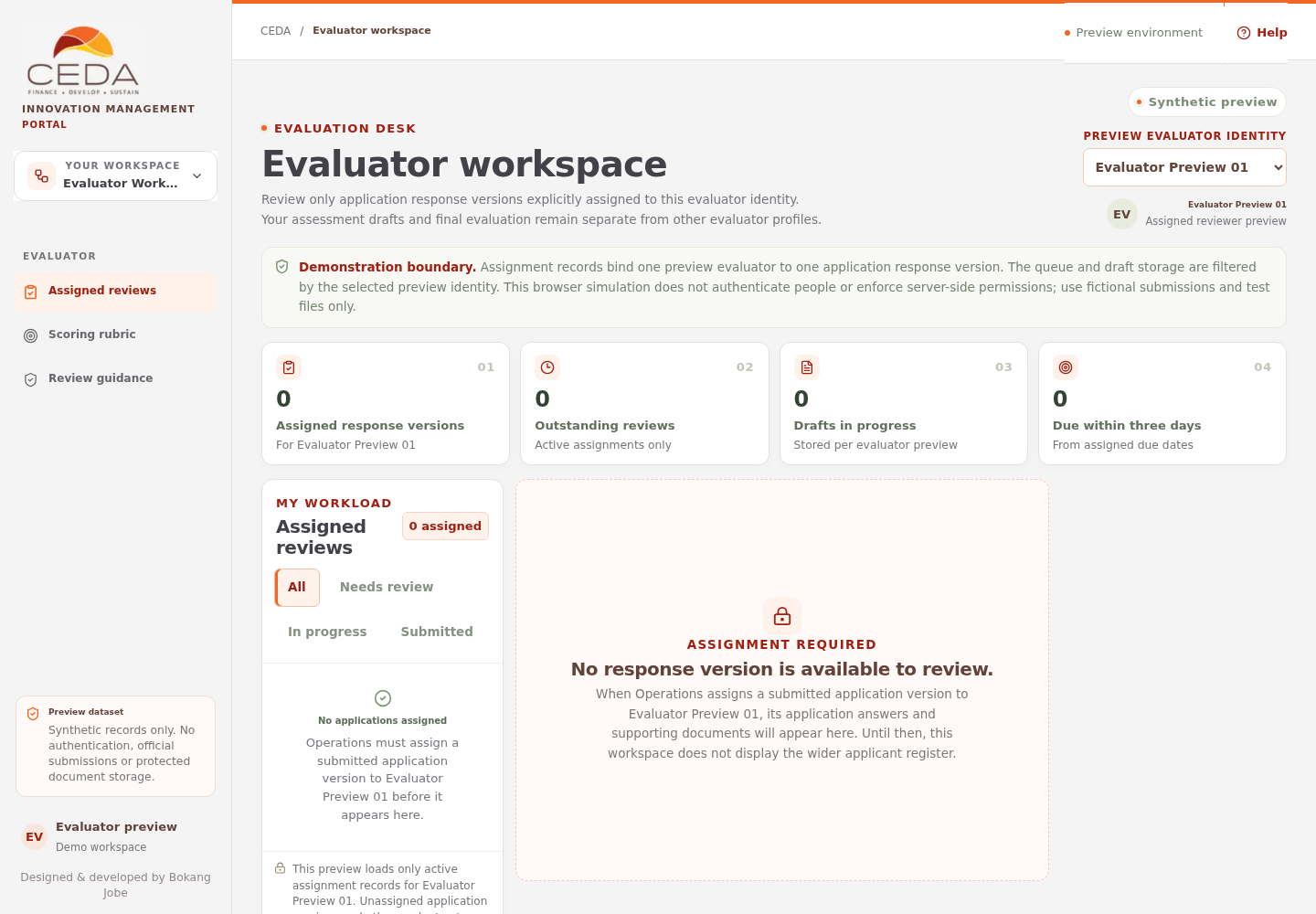
The evaluator selector is a demonstration identity switcher, not a sign-in system. Queue filtering and draft separation are browser-side prototype behaviour, not server-enforced confidentiality. Use fictional submissions and synthetic test files only. Do not enter real applicant information or genuine evaluator assessments.
1. Open the Evaluator workspace
- Open the CEDA portal preview.
- Use the workspace selector in the left sidebar.
- Choose Evaluator workspace.
- Confirm the Synthetic preview badge is visible and the main heading reads Evaluator workspace. The smaller eyebrow above it reads Evaluation Desk.
- Select Help in the top bar to open this guide.
The direct preview route is /ceda/evaluator.
2. Select a preview evaluator identity
- Find Preview evaluator identity in the page header.
- Select the preview identity assigned to your synthetic demonstration.
- Check the identity label beside the selector.
- Review the queue again after switching identities.
The starter preview contains three evaluator identities. Changing the selector changes the active assignment queue and loads the draft store associated with that preview identity. It also clears the currently selected assignment and the page's current notice/validation message.
This selector is not authentication. It does not establish who is using the browser or provide a secure identity boundary.
3. Understand the workload summary
Four metric cards appear below the page header:
| Metric | Meaning |
|---|---|
| Assigned response versions | Active application response versions assigned to the selected preview evaluator |
| Outstanding reviews | Active assignments that do not yet have a final submitted evaluation |
| Drafts in progress | Assignments with an explicitly saved assessment draft for the selected preview identity |
| Due within three days | Unsubmitted assignments whose due date is today or within the next three calendar days |
An overdue assignment is shown as overdue in its selected review panel, but it is not included in the Due within three days count. The figures are calculated from the current browser's preview assignments and drafts.
4. Work from Assigned reviews
The Assigned reviews panel displays the active assignments available to the selected preview identity. Each queue card shows:
- application reference and title;
- applicant organisation;
- sector;
- assessment status; and
- due date or completion label.
Use the four queue filters:
| Filter | What it shows |
|---|---|
| All | Every active response-version assignment for the selected evaluator |
| Needs review | Assignments without an explicitly saved assessment draft |
| In progress | Assignments with a saved draft that have not been submitted |
| Submitted | Assignments with a completed final evaluation |
Select an assignment card to open its review panel. The status changes to In progress after you select Save draft. Editing fields alone does not set the queue's in-progress timestamp.
5. Understand an empty queue
A new browser session may show No applications assigned. This is expected when Operations has not allocated a submitted application response version to the selected preview identity.
To populate the queue with synthetic data:
- Complete and submit a sample application in the Applicant workspace.
- In Operations, open Evaluator assignments.
- Select the exact submitted application response version, evaluator identity and due date.
- Select Assign selected evaluator.
- Return to the Evaluator workspace and select the same preview evaluator identity.
- Confirm the response version appears in Assigned reviews.
Draft applications are not assignable. Revoked assignments are not displayed. An assignment also needs its matching response version and published form snapshot to be available in this browser before the review can be opened.
6. Understand the review workbench
When an assignment is selected, the workbench displays the queue on the left and the assigned review on the right. The review includes:
- Review header: application reference, sector, title, organisation, received date, response version and published form version.
- Proposal summary: the summary saved with that exact response version.
- Submitted application: read-only sections and field answers from the published form snapshot.
- Supporting documents: each configured document requirement, its instructions and the files linked to the assigned response version.
- Conflict-of-interest declaration: the declaration that must be completed before scoring.
- Criterion-by-criterion assessment: the version-pinned rubric, weights, score choices and evidence rationale fields.
- Overall assessment: the recommendation and overall rationale.
- Progress and guidance panel: deadline, assignment identity, response version, scoring progress, weighted score and score descriptors.
Use Assignment and conflict declarations to understand the assigned evidence and conflict procedure before scoring.
7. Understand the independent-review boundary
The Evaluator workspace resolves only the application ID and response version named in the selected active assignment. It does not render the wider applicant register, unassigned submissions, other response versions or peer assessments.
The submitted application answers are read-only. Repeated-table answers use the published field labels rather than internal storage keys. Supporting files are resolved from the current browser's local IndexedDB store and are checked against the assigned application and document requirement before download.
Each selected preview evaluator has a separate local draft store. These boundaries demonstrate the intended workflow; they are not authentication, server-side authorisation or a guarantee of confidentiality.
8. Understand the deadline and progress panel
The right-hand panel shows the review due date, whether the assignment is overdue or approaching its due date, the selected evaluator identity, response version, received date and assessment status.
The assessment progress card shows the percentage of criteria scored, the weighted score, the number of criteria with a rationale of at least 20 characters, and whether a clear conflict declaration has been recorded.
The weighted score is an illustrative decision-support calculation. It is not an official CEDA ranking or approval outcome.
9. Continue to the task guides
Operations controls allocation and revocation. The Evaluator workspace does not allow an evaluator to browse the full application register or assign work to themselves.