Administration overview
The Administration workspace is the portal's account directory and workspace-assignment design surface. It brings together user profiles, proposed role templates, onboarding status and an activity view.
Open Administration in the CEDA preview.
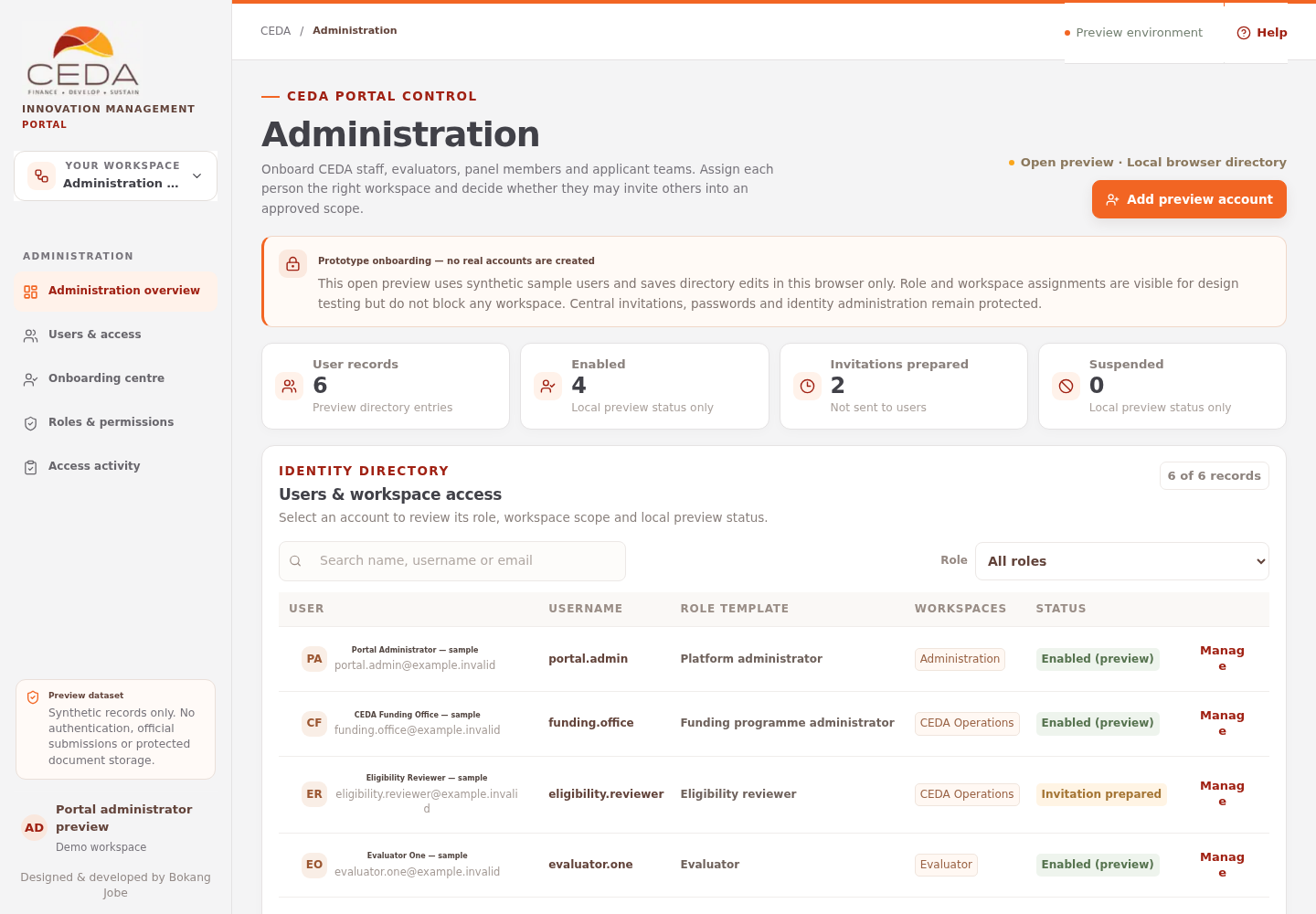
The current preview identifies itself as Open preview · Local browser directory. Account, role and workspace values are saved in this browser profile. They do not create authenticated users or restrict access to workspace routes. Do not enter real personal details or use these controls to grant production access.
1. Open the workspace
- Open the CEDA portal preview.
- Select Administration in the left navigation.
- Confirm the page heading is Administration.
- Check the header indicator reads Open preview · Local browser directory.
- Select Help to open this guide in a new tab.
The direct route is /ceda/admin.
2. Understand the account summary
Four cards appear below the page header:
| Card | What it counts |
|---|---|
| User records | All account profiles currently held in the directory |
| Enabled | Profiles whose local status is Enabled (preview) |
| Invitations prepared | Profiles whose local account status is Invitation prepared |
| Suspended | Profiles whose local status is Suspended |
These are directory-status counts, not proof of live authentication or invitation delivery. In particular, the Invitations prepared card reads the status on user profiles. The separate Onboarding centre counts invitation records. Those two figures can differ in the open preview.
3. Understand the Administration sections
| Section | Purpose |
|---|---|
| Users & workspace access | Search and filter user profiles, review assigned role/workspace values and open the access editor |
| Onboarding centre | Show invitation records where available, plus pending, completed and delegated-onboarder counts |
| Role templates & permissions | Review the proposed role descriptions, default workspace assignments and role-to-workspace matrix |
| Administration activity | Review local preview events for account creation, status changes and role/workspace updates |
| Before production | Review the security and access-enforcement requirements still outstanding |
The Add preview account action opens the account form above the directory.
4. Work with the directory
The directory can be searched by full name, username or email address. Use the Role filter to narrow the records. Select a user's name or Manage to open the access editor.
The table shows the user's name and email, username, role template, workspace values, local account status and any onboarding/delegation labels available on the profile.
See Preview accounts for the account-form and directory steps.
5. Understand the Onboarding centre
The Onboarding centre is designed to display pending, completed and revoked invitation records, together with delegated-onboarder counts.
In the current open preview, adding a preview account does not create an invitation record or link. The empty state in this area is therefore expected. The separate central identity-service mode contains the controlled invitation workflow; see Onboarding and security before interpreting any invitation controls.
6. Review role templates and the workspace matrix
The role cards describe the intended responsibility and default scope for eight proposed portal roles. The matrix shows the default workspace associated with each role.
A filled dot means the workspace is included as the role's default. An open circle means it is not included by default. The matrix does not show record-level permissions, approval authority or every possible additional workspace value that an administrator may select in the account editor.
See Roles and workspace access for the full role and workspace guide.
7. Read the activity section
Administration activity lists local events such as a preview account being added, a profile being suspended or re-enabled, and a role/workspace update being saved.
The activity list is not an immutable audit record. Browser storage can be cleared or changed, and the open preview does not record server-side access to protected records.
8. Understand the two access modes
The current open preview uses browser-local sample records and leaves workspace routes open.
A separate gated central identity-service implementation exists in the repository. When that mode is deliberately enabled and its D1 database and deployment configuration are available, Administration presents an administrator sign-in or one-time initial-bootstrap screen and reads centrally stored identity records. That implementation is not the same as the current open preview, and enabling the flag alone is not a complete production security approval.
Do not treat the presence of the central identity code as evidence that the current preview is protected. Production requirements are listed in Onboarding and security.