Application register
The Applications in motion register is the working list of sample submissions in the Operations workspace. It supports searching, filtering, adding, reviewing, editing and exporting synthetic records.
1. Open and search the register
Select Application register in the left navigation. The table displays the innovation title and reference, organisation and district, funding route, workflow stage, reviewer and next due item.
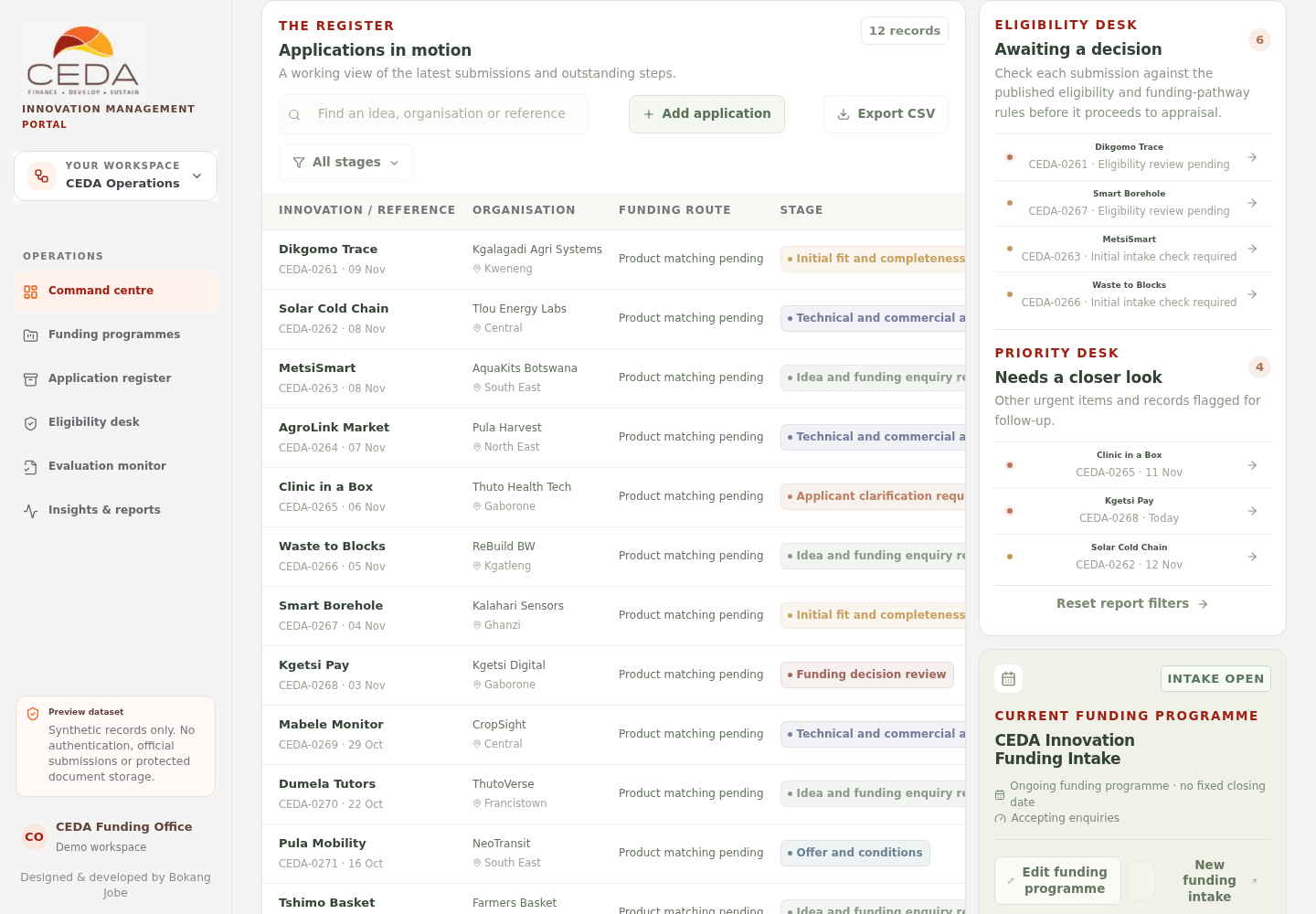
- Use Find an idea, organisation or reference to search by title, organisation or record reference.
- Select the stage filter to focus the list on one workflow stage.
- Select a row or its arrow action to open the application-detail drawer.
The table reflects the selected funding-programme, date and district filters from the Operations command centre.
2. Add a synthetic application
- Select Add application above the register.
- Complete the sample application fields.
- Confirm that title, organisation and innovation summary are supplied.
- Select Create application.
- Confirm that the new synthetic record appears in the register and dashboard totals.
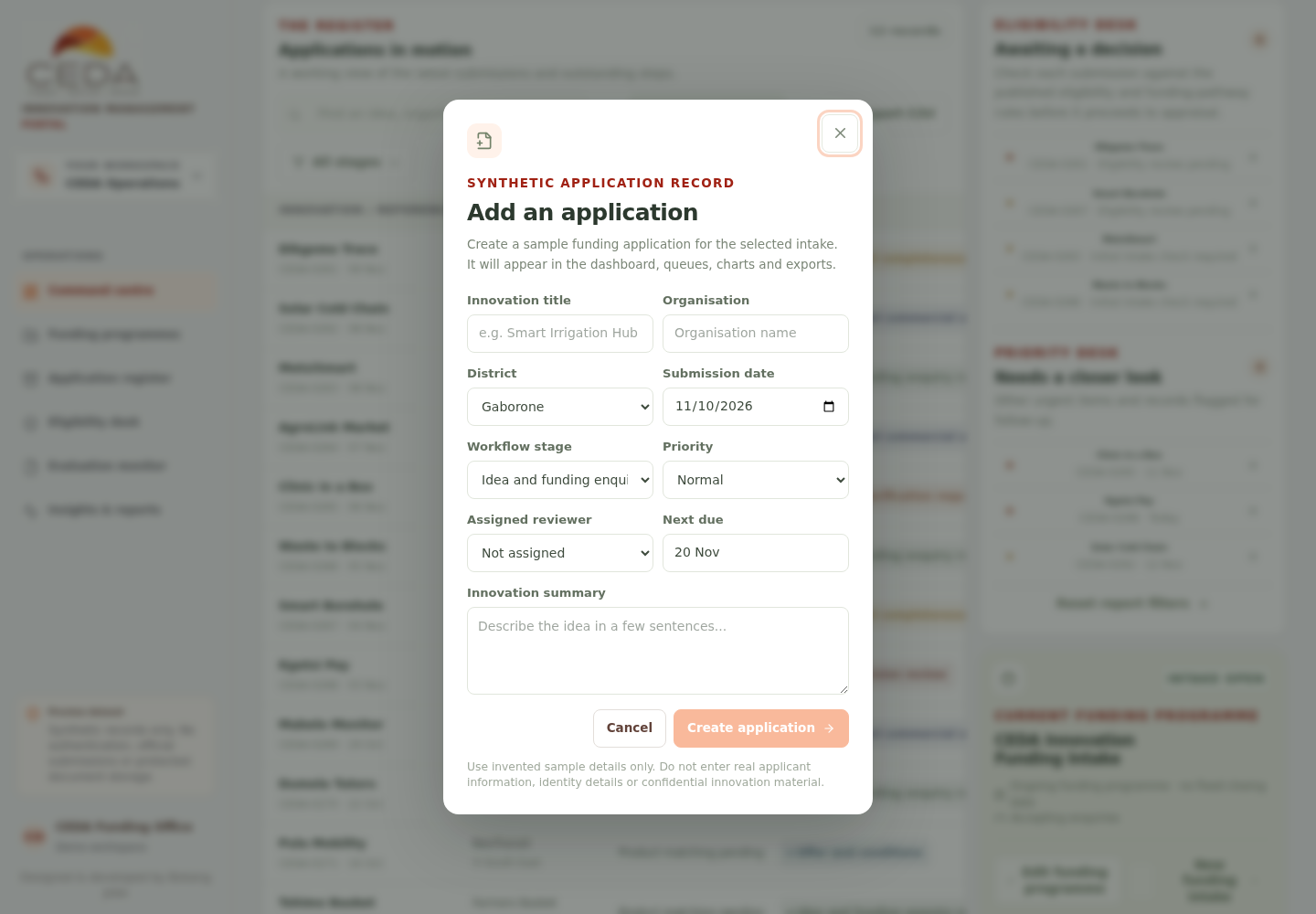
The form includes Innovation title, Organisation, District, Submission date, Workflow stage, Priority, Assigned reviewer, Next due and Innovation summary. Use invented information only; adding a record does not create an applicant account or official submission.
3. Open the application-detail drawer
Select a sample row to open Application detail.
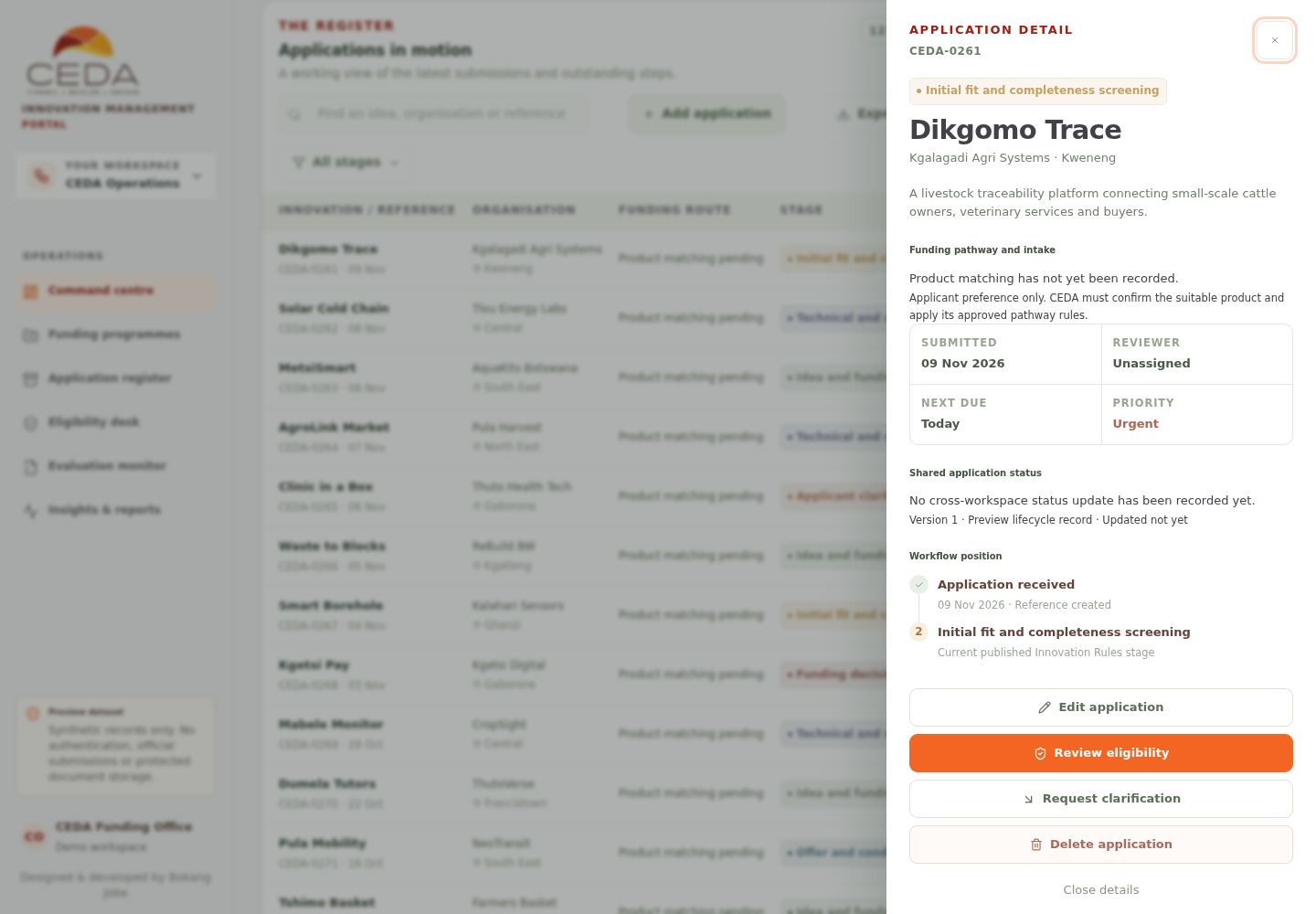
Review:
- the record reference, innovation title and organisation;
- the applicant's stated funding pathway and amount, where available;
- submission date, reviewer, next due item and priority;
- shared application status from the preview workflow record; and
- current workflow position and preview activity.
The funding route is an applicant preference, not a CEDA product decision. CEDA must confirm the suitable funding product and apply its approved pathway requirements.
4. Edit an application
- Open the application-detail drawer.
- Select Edit application.
- Update the sample record fields.
- If the workflow stage is changing and the current stage requires an exit reason, provide a reason of at least 10 characters.
- Select Save changes.
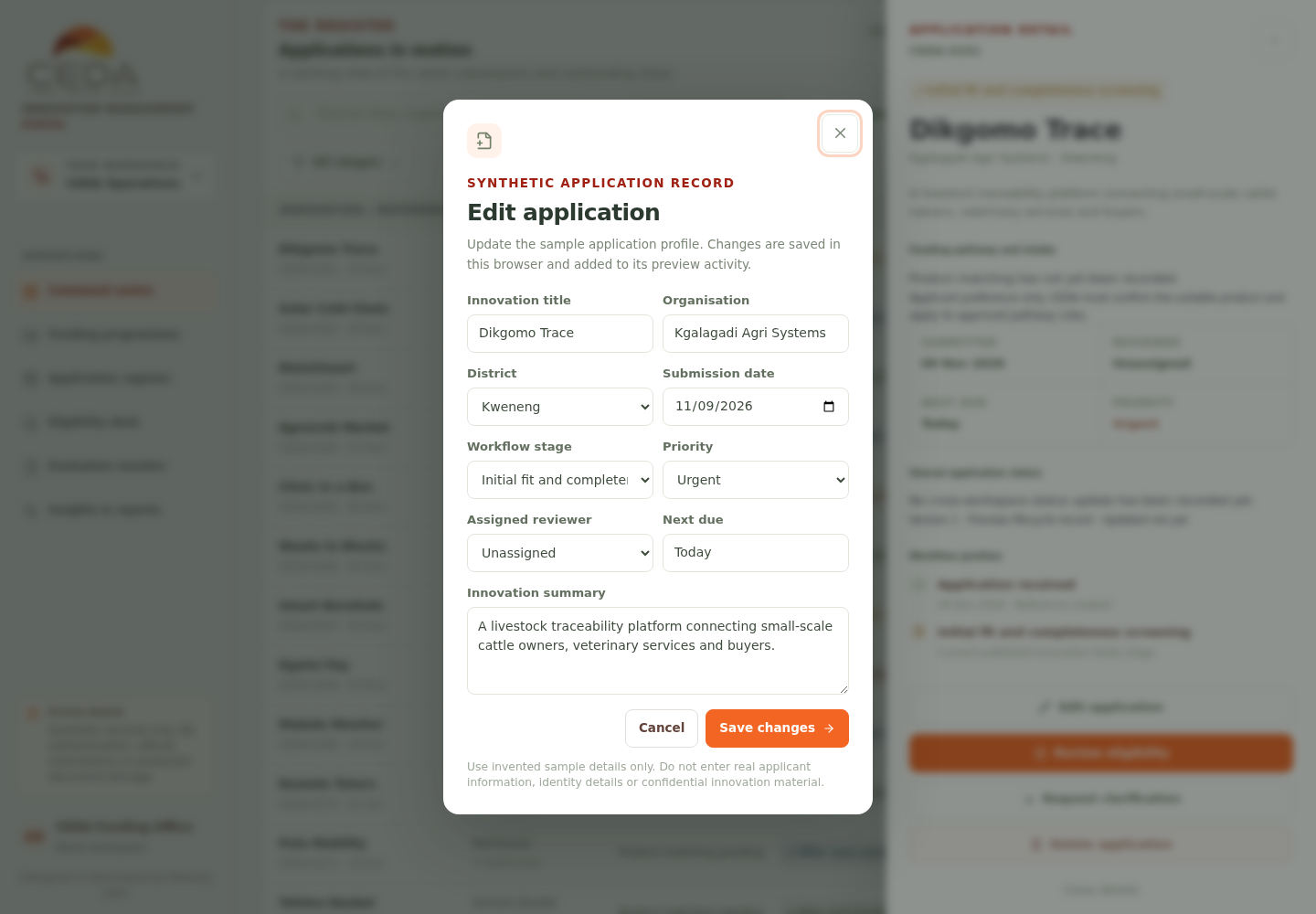
The edit is saved to the local preview and appended to the record's preview activity. It does not modify an applicant's live submission.
5. Export the current register
- Apply the funding-programme, submission-window, district and stage filters that you need.
- Select Export CSV.
- Save the downloaded file and open it in a spreadsheet application.
The export contains the filtered list currently shown, including reference, innovation, organisation, district, submitted date, stage, reviewer, due item and priority. It is not an export of official CEDA records.
6. Delete a sample application
The application-detail drawer includes Delete application. Deleting removes that synthetic record from the local register and its charts. Do not use this action when reviewing genuine or production data; the preview has no official record-recovery service.