Evaluator assignments and monitoring
The Operations workspace controls which submitted application response versions are allocated for independent assessment. The assignment desk receives conflict notices from evaluators, while the Evaluation Monitor shows progress without exposing the content of individual assessments.
Open Operations and select Evaluator assignments in the top action row.
The allocation desk, conflict register and progress monitor use synthetic browser-local records. The evaluator selector is not an authenticated account, and the preview does not enforce server-side permissions or send assignment notifications. Use fictional applications and test files only.
1. Open the assignment desk
- Open Operations.
- Select the intended funding intake.
- Select Evaluator assignments in the top action row.
- Review the Funding applications, Active assignments, Evaluators engaged and Conflict notices requiring action cards.
2. Select the submitted application and exact version
Only applications with a completed sample submission and at least one recorded response version appear in Submitted application. Drafts are excluded.
In New allocation — Assign a submitted response, choose:
| Field | What to select |
|---|---|
| Submitted application | The sample application to be assessed |
| Exact response version | The specific applicant response the reviewer must assess |
| Evaluator | The preview evaluator identity |
| Review due date | The sample review deadline |
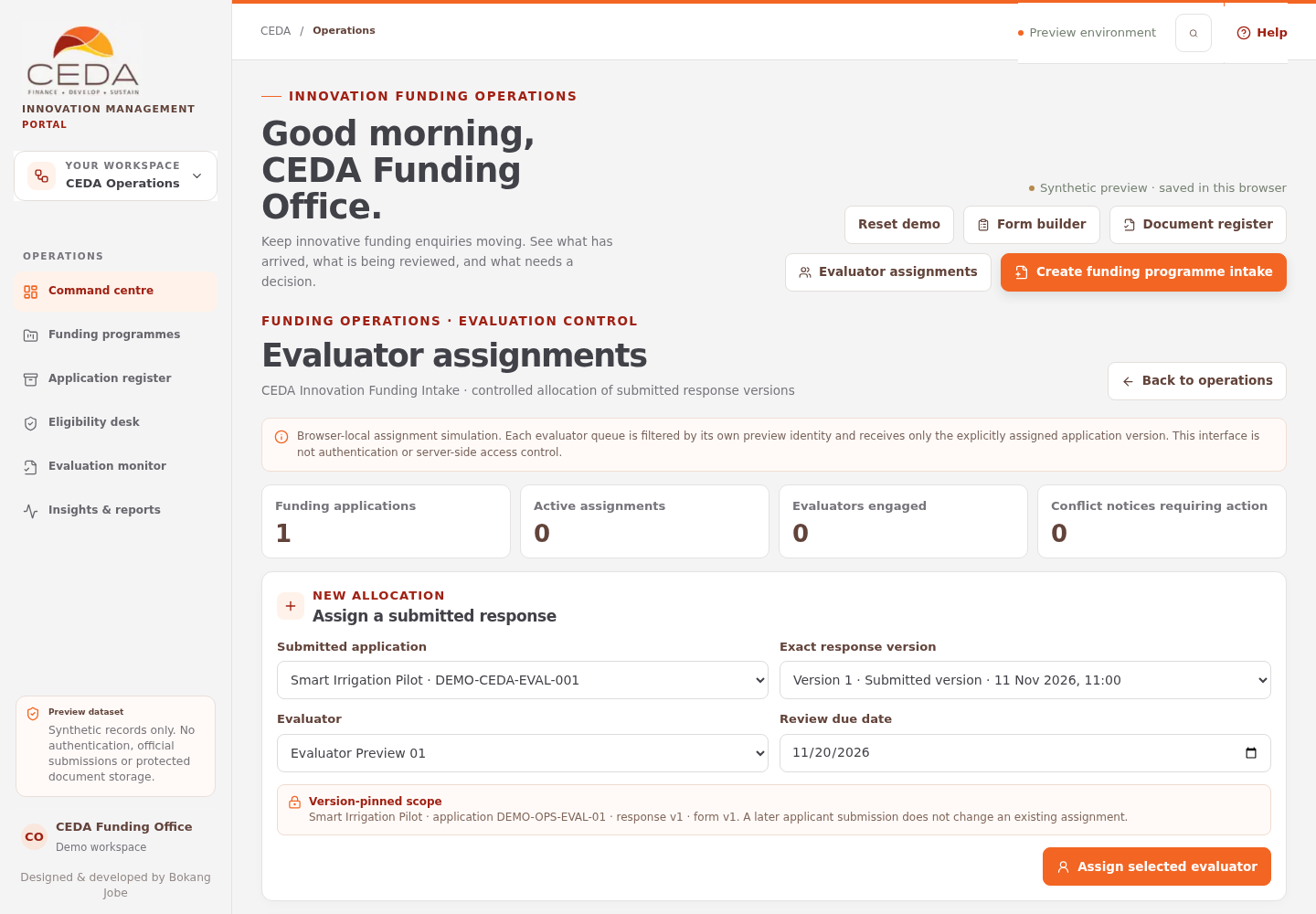
Read the Version-pinned scope notice before selecting Assign selected evaluator. It identifies the application, response version and published form version. A later applicant response does not silently change an assignment that already exists.
If no submitted response is available, return to Applicant workspace, complete a published form with fictional details and record a sample submission. A draft alone cannot be assigned.
3. Review the allocation register
After an assignment exists, it appears under Assigned response versions with the application title and reference, response and form versions, evaluator, assignment date, review due date, supporting-file count and conflict declaration status.
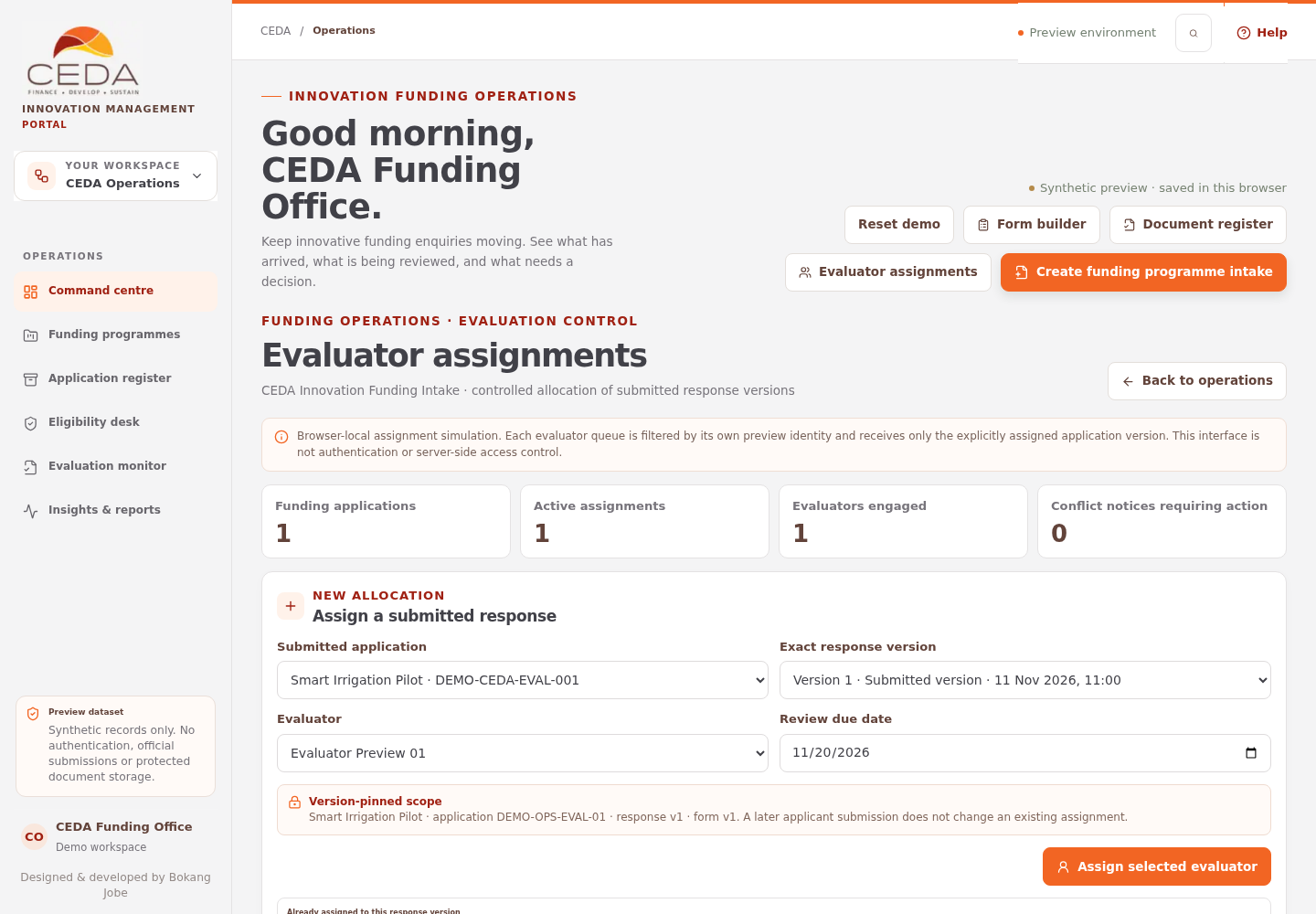
The allocation is pinned to the exact response version and published form version shown. The desk prevents duplicate active assignments for the same evaluator, application and response version, and prevents assigning a previously completed version to the same evaluator identity again.
4. Handle a conflict declaration
The allocation card can show Conflict declaration pending, No conflict declared, Potential conflict or Conflict declared. Review potential or declared conflicts through the approved CEDA recusal and reassignment process before the evaluator continues.
When an evaluator selects Potential conflict or Conflict declared, the Evaluator workspace locks that declaration and pauses scoring. The evaluator cannot clear the disclosure themselves. Operations must review the status, enter a withdrawal reason of at least 10 characters, select Revoke access, and create a new assignment for a different evaluator after the recusal decision. The preview displays conflict status metadata; it does not provide a formal conflict-of-interest investigation or notification service. Production policy must define who reviews a disclosure, how recusal is recorded and who authorises reassignment.
5. Revoke an assignment
- Find the active assignment in Assigned response versions.
- Enter a Withdrawal reason.
- Provide at least 10 characters.
- Select Revoke access.
- Confirm that the assignment is no longer active in the evaluator's queue after the next update or refresh.
The preview retains historic local drafts rather than deleting them. Production revocation must be enforced server-side and every access, download, reassignment and withdrawal must be auditable.
6. Monitor evaluation progress
Return to Operations and select Evaluation monitor in the left navigation. The monitor is titled Independent evaluation progress.
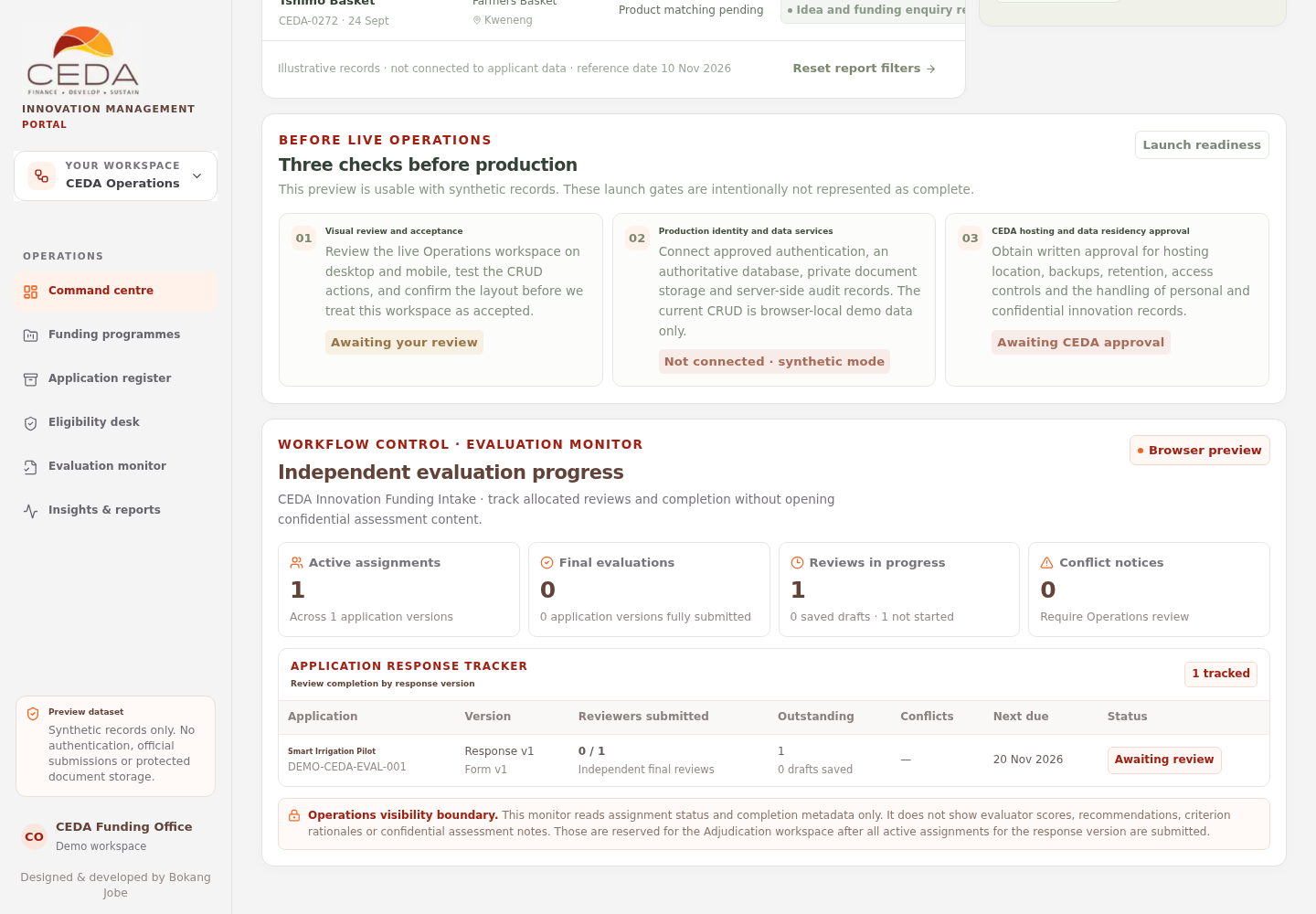
The summary cards show:
| Metric | What it means |
|---|---|
| Active assignments | Current active allocations across application response versions |
| Final evaluations | Submitted final assessments and response versions fully completed |
| Reviews in progress | Saved evaluator drafts plus assignments not yet started |
| Conflict notices | Active assignments with potential or declared conflict flags |
The Application response tracker groups progress by application, response version and form version. It shows the number of reviews submitted versus assigned, outstanding reviews, conflicts, next due date and status.
Typical statuses are Awaiting review, Under evaluation and All assigned reviews in.
7. Respect the Operations visibility boundary
The Evaluation Monitor reads assignment and completion metadata only. It does not display criterion scores, evaluator recommendations, criterion rationales or confidential assessment comments. Those details are reserved for the Adjudication workspace after all active assignments for the exact response version have been submitted and validated.
Continue with the Evaluator workspace guide to see how an assigned reviewer declares conflicts, assesses the pinned application version and submits a final evaluation. The Adjudication guide explains how completed independent assessments are brought together for panel consideration.
Production requirements
Before production use, CEDA requires authenticated evaluator identities, server-side assignment authorisation, private application and evidence storage, formal conflict and recusal procedures, workload and due-date policy, durable status transitions, append-only audit records and clear decision-panel governance.