Review documents in the Document register
The Operations Document register displays the supporting-document requirements and file attachments associated with submitted Applicant preview records. It lets a tester inspect a response version, download an original synthetic test file and record a demonstration review outcome.
Open Operations and select Document register in the top action row.
The register reads application metadata from browser local storage and file bytes from the same browser profile's IndexedDB. It is not private CEDA object storage, cross-device storage or an official document-verification service. It does not inspect file contents or malware-scan. Never use real applicant, identity, company or confidential proposal documents.
1. Understand the empty state
A clean browser may show No submitted applicant records found with zero summary counts. Drafts are intentionally excluded.
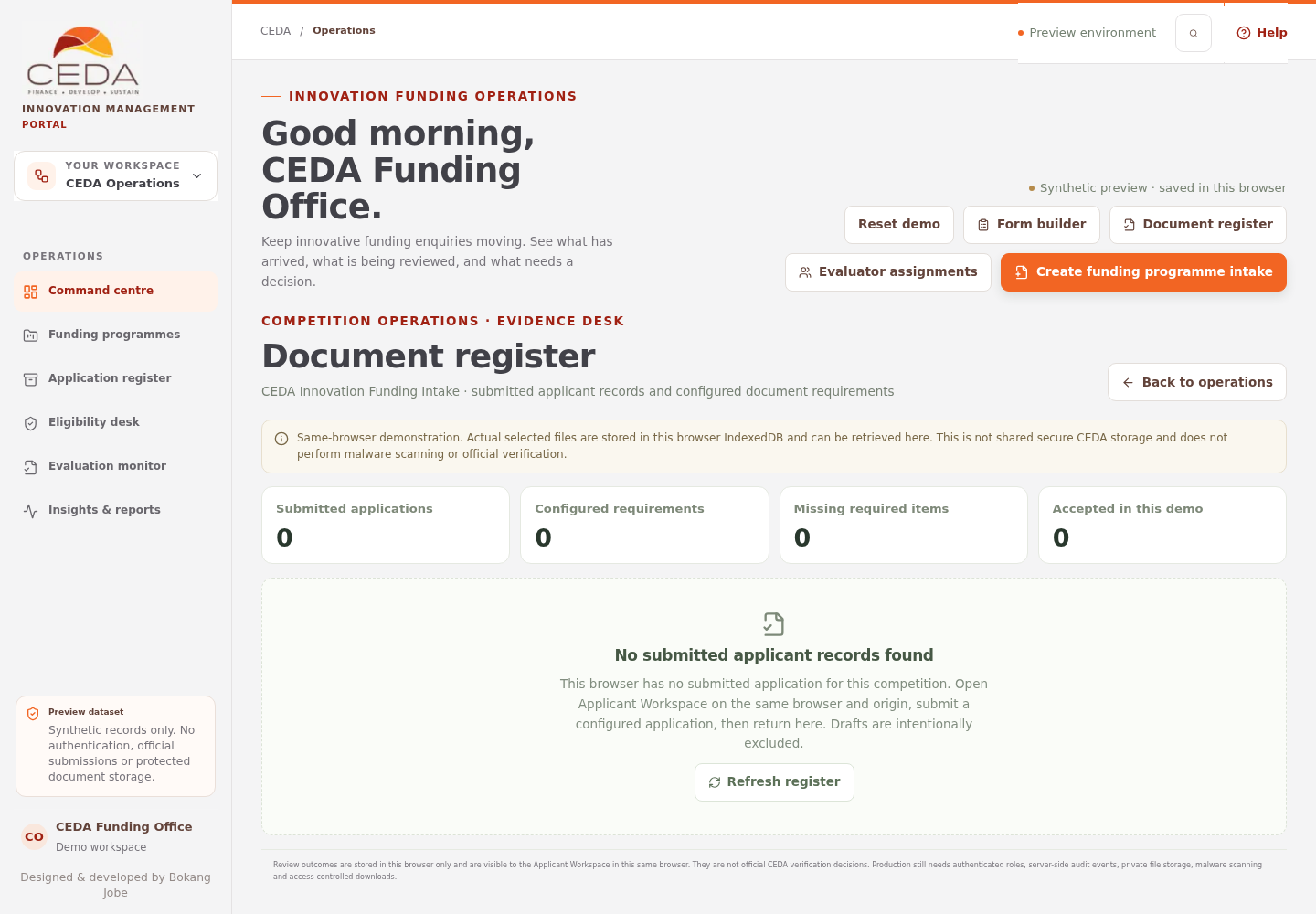
To populate the register for a test:
- In Operations, open Form builder and publish a preview form version with at least one document requirement.
- Open Applicant workspace in the same browser profile and portal origin.
- Create a new draft using that published version.
- Attach harmless synthetic files that meet the displayed extension, size and file-count limits.
- Complete required questions and declarations, then confirm the sample submission.
- Return to Operations and open or refresh Document register.
2. Select a submitted application and response version
When submitted records exist, the Applicant submissions list shows applications available for review. Select one and verify its title, organisation, reference, status and form version.
Use Viewing application version to select the response version you need to inspect. Document requirements, attached-file lists and review outcomes below are scoped to that selected response version. A replacement upload creates a new linked version; it does not overwrite the previous version's file.
3. Review the document requirements
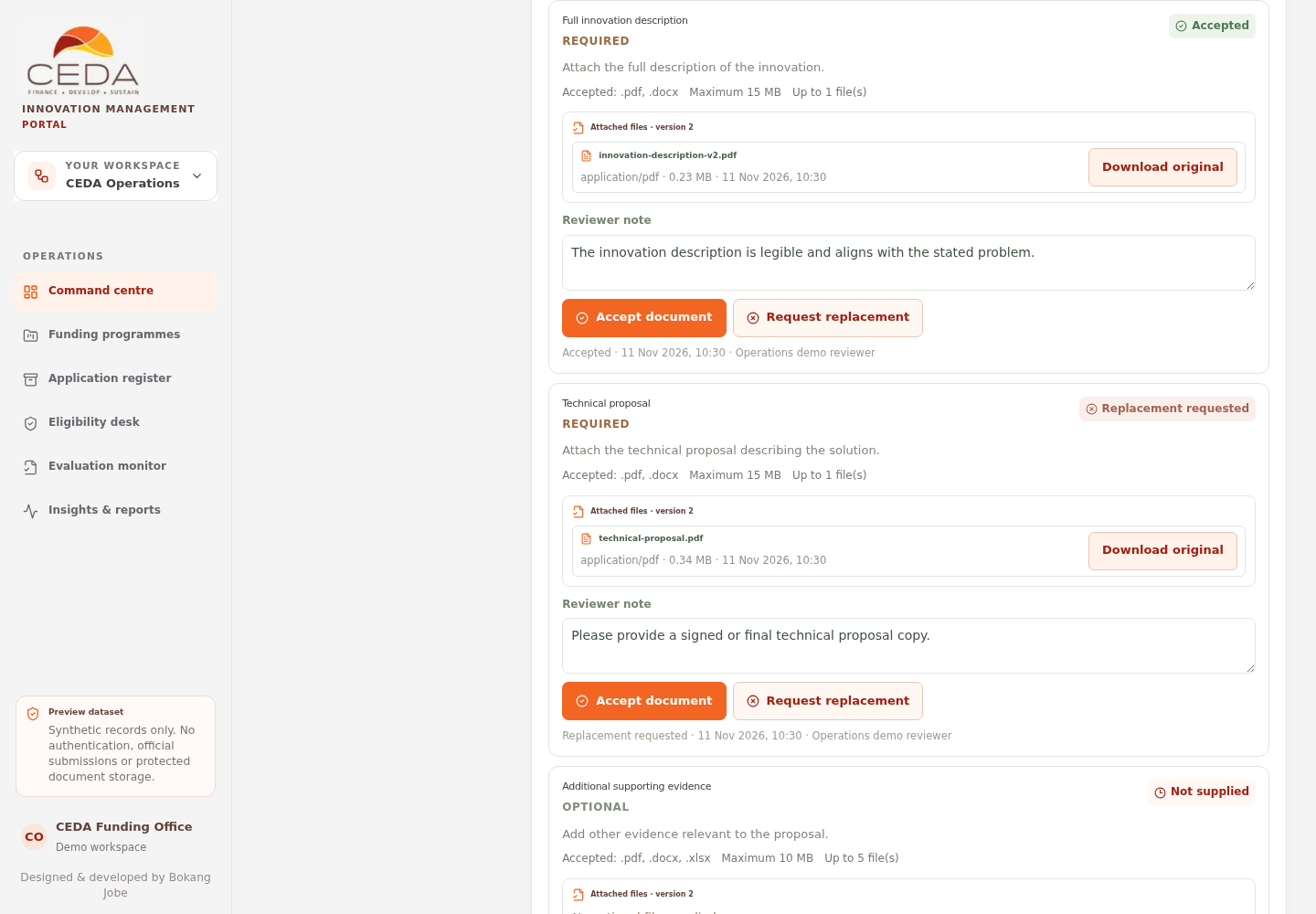
For each requirement, check:
- document title and applicant instructions;
- Required or Optional status;
- accepted filename extensions;
- maximum file size and file count;
- review status (Missing, Not supplied, Pending review, Accepted or Replacement requested); and
- attached filename, content type, size and upload date.
A legacy filename label is not a file. Only an actual attachment has file metadata and the Download original action.
4. Download an attached file
- Locate the document requirement in the selected response version.
- Find the attachment in Attached files.
- Select Download original.
- Open the downloaded synthetic file locally.
The download works only when the file bytes remain available in the same browser profile and portal origin where the applicant selected the file. If metadata exists but file bytes are missing, the register reports that the original cannot be retrieved.
5. Record a document review
Review controls appear only when an actual attachment is present.
To accept a document:
- Check the requirement and attached synthetic file.
- Add an optional Reviewer note.
- Select Accept document.
- Confirm that the status becomes Accepted for the selected application version.
To request a replacement:
- Enter a concise reason in Reviewer note.
- Select Request replacement.
- Confirm that the status becomes Replacement requested.
The register requires a note before it records a replacement request. These are local demonstration records, not official CEDA evidence-verification decisions. No applicant notification is sent.
6. Check the Applicant-side result
- Return to Applicant workspace in the same browser.
- Open the submitted application and matching supporting-document requirement.
- Confirm that the Applicant view shows the review status, note and review date.
- Where a replacement was requested, select a permitted synthetic replacement file and submit the replacement response.
- Return to Operations and open Document register.
- Select the new response version, then select the earlier version to confirm that its original attachment remains associated with that version.
The preview carries forward unchanged document-review states to the new version. Version history preserves the relationship between the original submission and later responses.
7. Production requirements
The prototype stores application and review metadata in local storage and file bytes in IndexedDB. It does not provide authenticated reviewer permissions, cross-user access, server-side file validation, malware scanning, immutable audit events, retention controls, secure notifications or approved hosting and data residency.
Before production, CEDA must approve private document storage, authenticated upload and download, server-side content validation and malware scanning, access control, audit, version retention, backup and recovery, applicant notification and data residency.