Eligibility and application actions
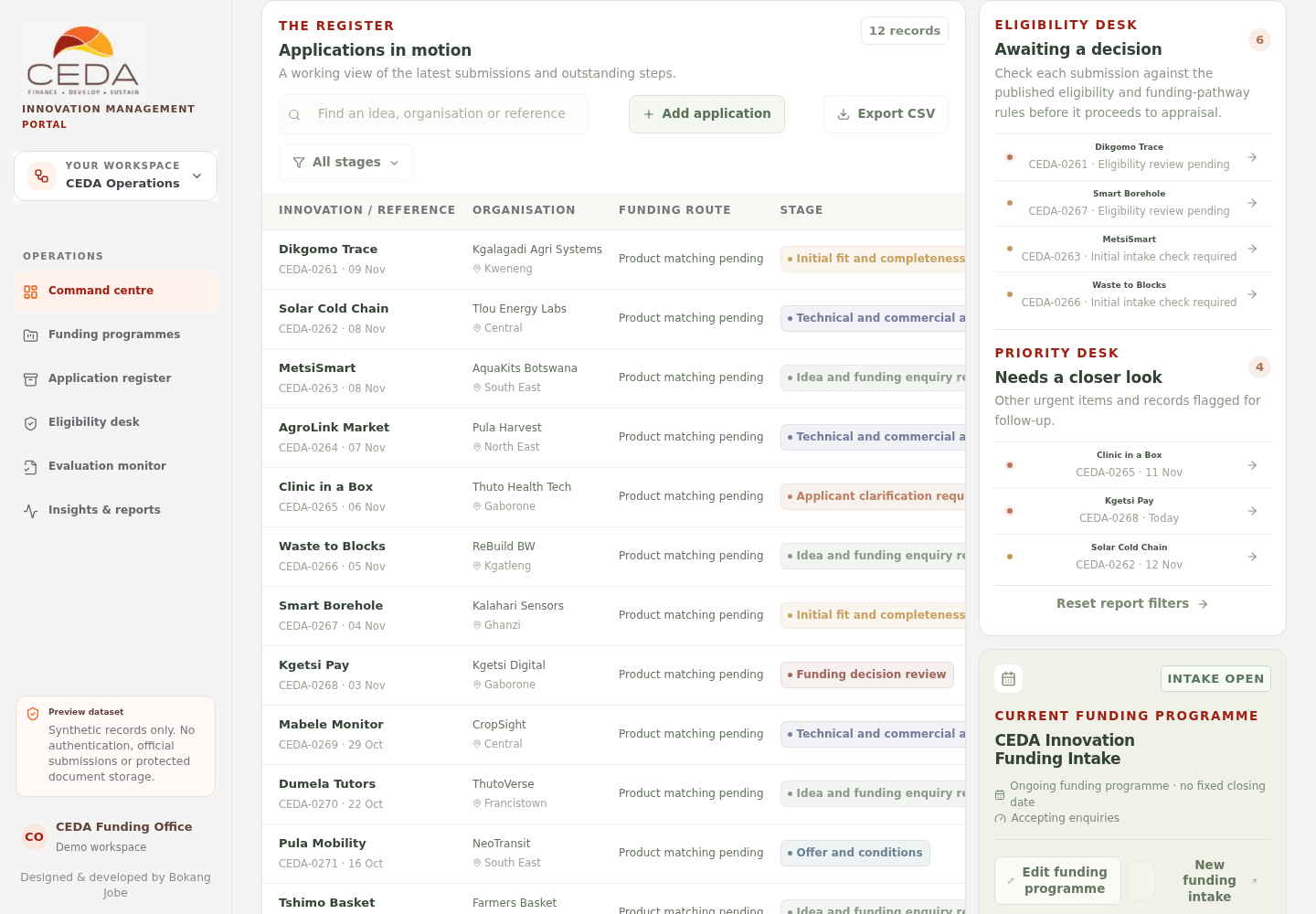
The Operations workspace includes an Eligibility desk and Priority desk. They help staff identify sample records awaiting screening and other records needing follow-up.
1. Open a record from the attention panels
- Select Eligibility desk in the left navigation.
- Review Awaiting a decision.
- Select a record to open its application-detail drawer.
- Review the application summary, applicant-stated funding pathway, submission date, reviewer, due date, priority and workflow position.
- Select the action appropriate to its current workflow stage.
2. Record an eligibility decision
The Review eligibility action appears for applications in the initial intake or screening stages.
- Open a sample record in one of those stages.
- Select Review eligibility.
- Choose an outcome:
- Eligible — proceed to evaluation
- Not eligible — close application
- More information required
- Enter the Reason and evidence reference checked.
- Select Record decision.
- Confirm the changed stage and activity in the application detail.
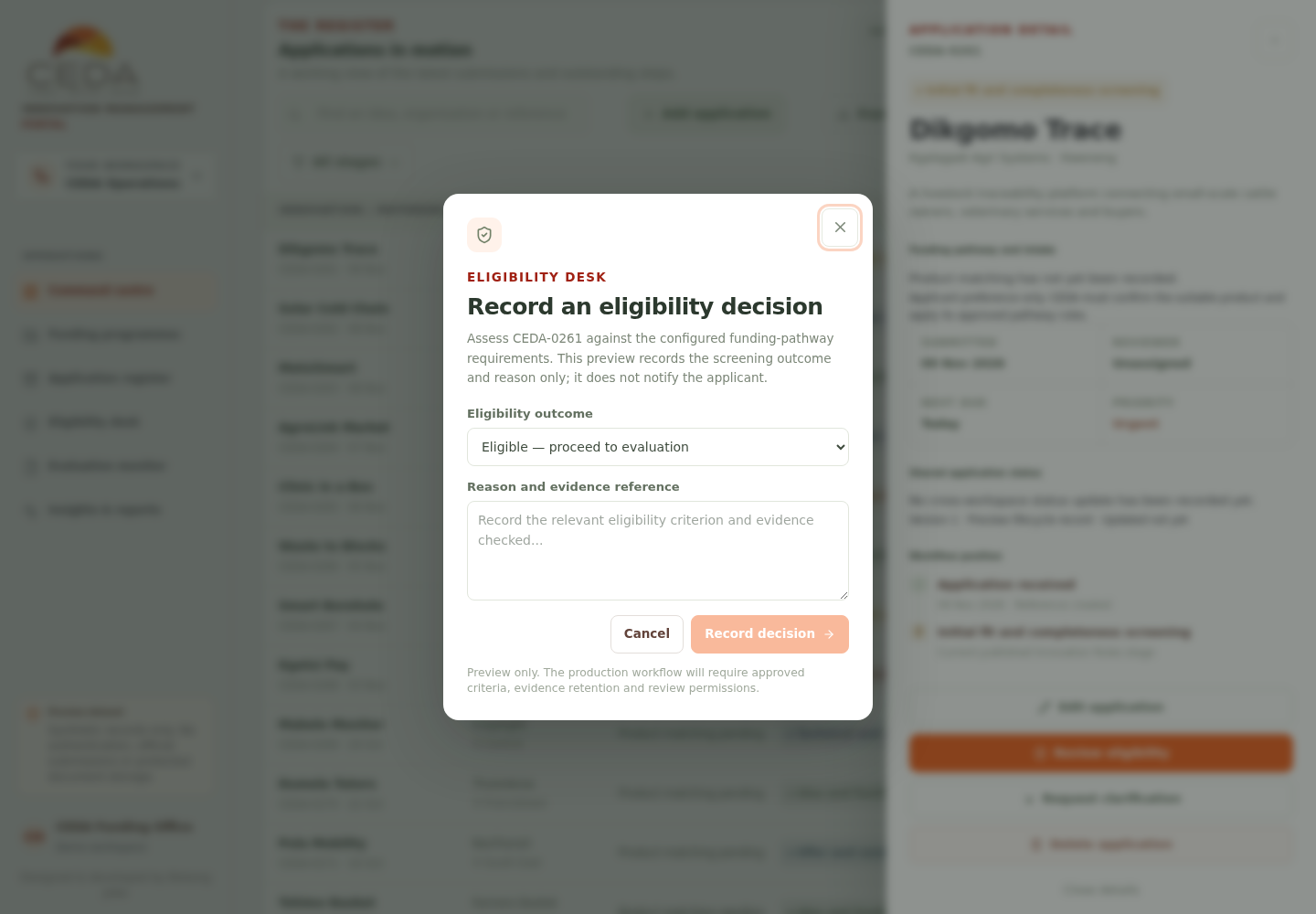
The reason is required. The preview records the outcome and reason; it does not notify the applicant. In production, the criterion and evidence reference, reviewer, policy version and audit event must be controlled and retained.
3. Request clarification
For records in screening or appraisal stages:
- Open the application-detail drawer.
- Select Request clarification.
- Describe the missing information or evidence in Clarification needed.
- Select Stage request.
- Confirm that the record moves to the Clarification stage and its activity records the request.
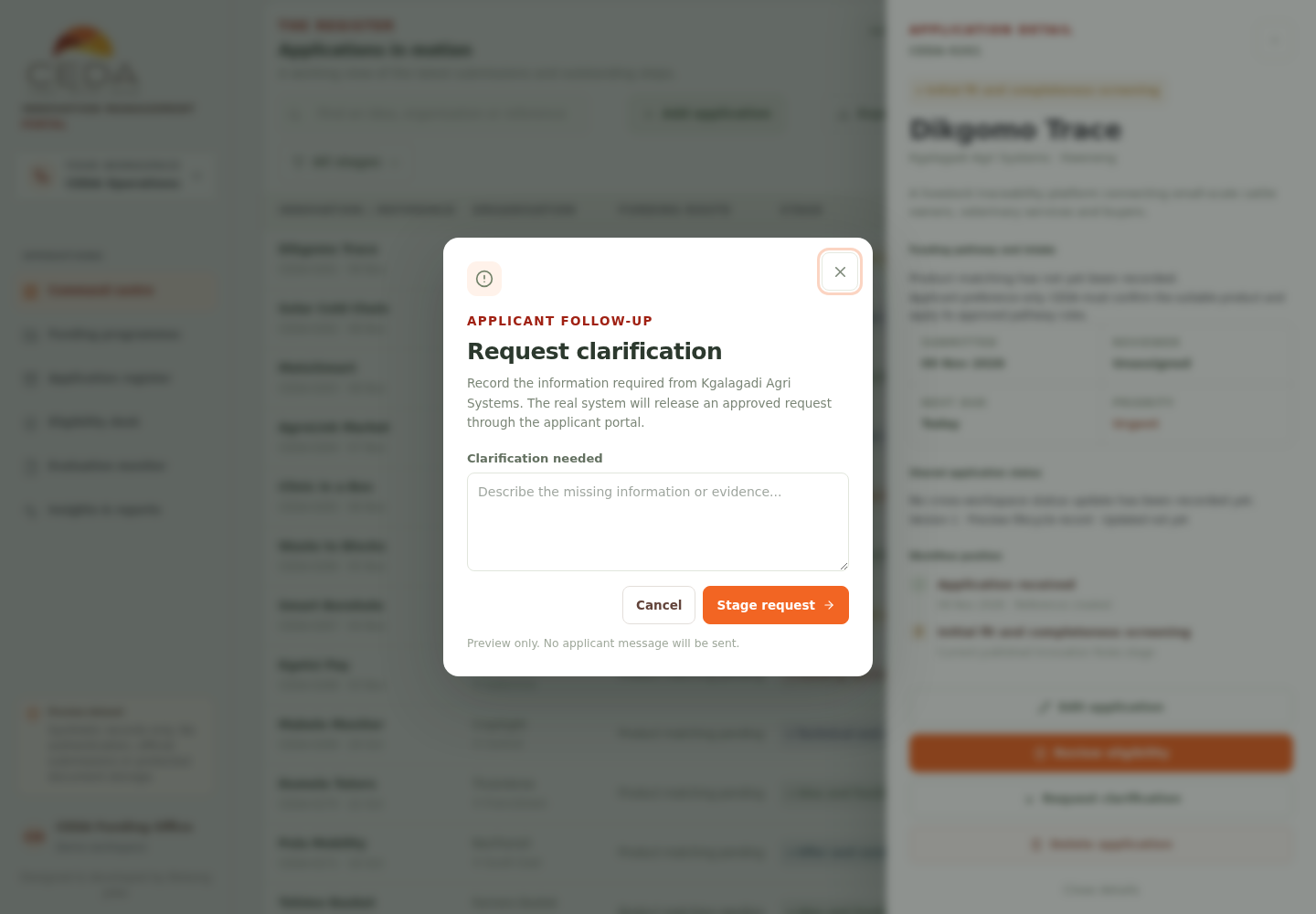
This action stages an illustrative request in the preview. It does not send an applicant message, email or notification.
4. Record that an applicant response was received
When a record is in the Clarification stage:
- Open its detail drawer.
- Select Record response received.
- Describe what was supplied in Response received and evidence note.
- Select Resume previous stage.
- Confirm that the application returns to the stage that requested clarification and the preview activity is updated.
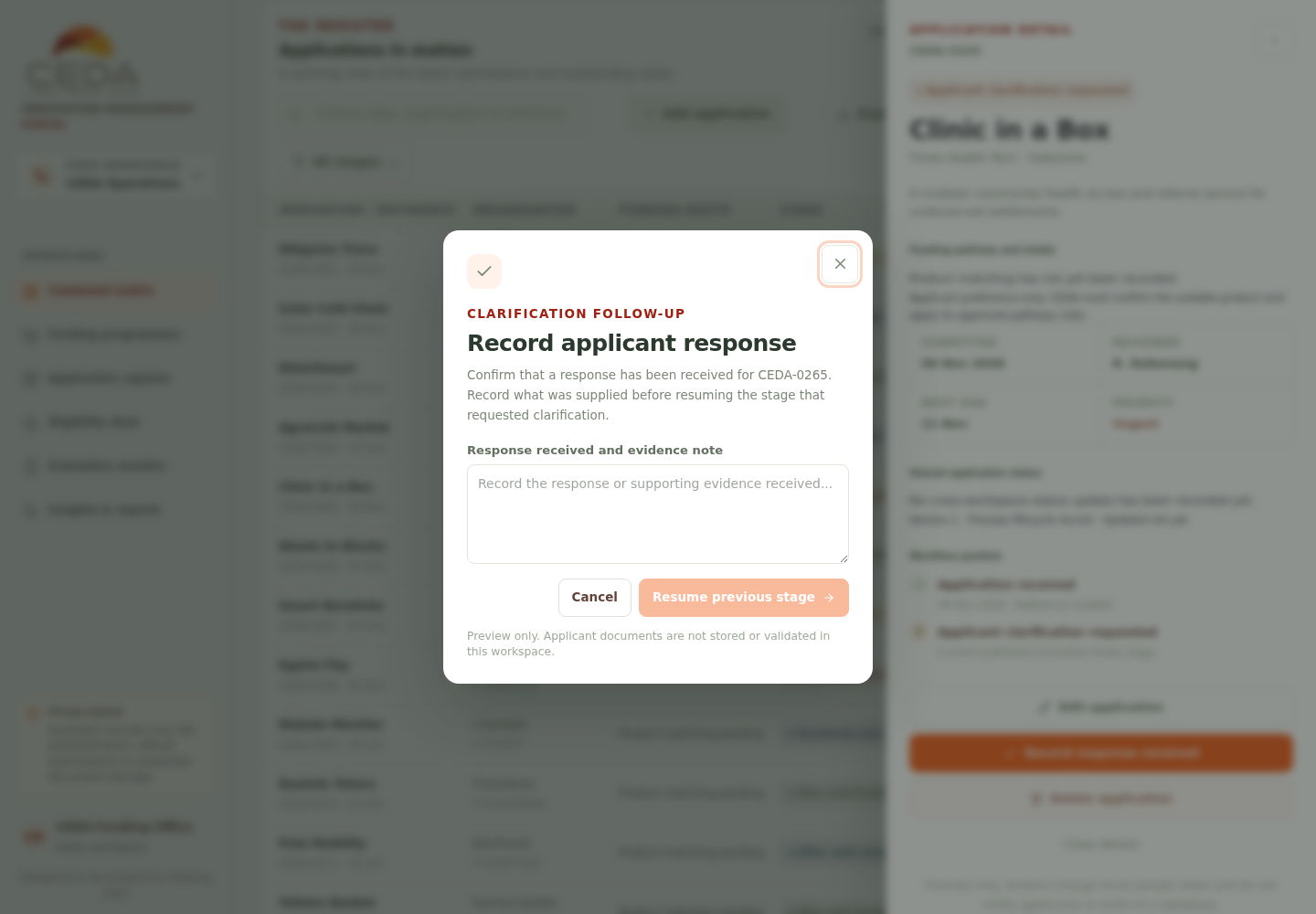
This records a preview note only. It does not receive or validate applicant documents.
5. Assign a reviewer from the application drawer
For records at proposal or appraisal stages, select Assign reviewer in the detail drawer, choose the preview evaluator and select Save assignment. If the workflow stage requires a reason for leaving, the dialog asks for that reason before moving to technical appraisal.
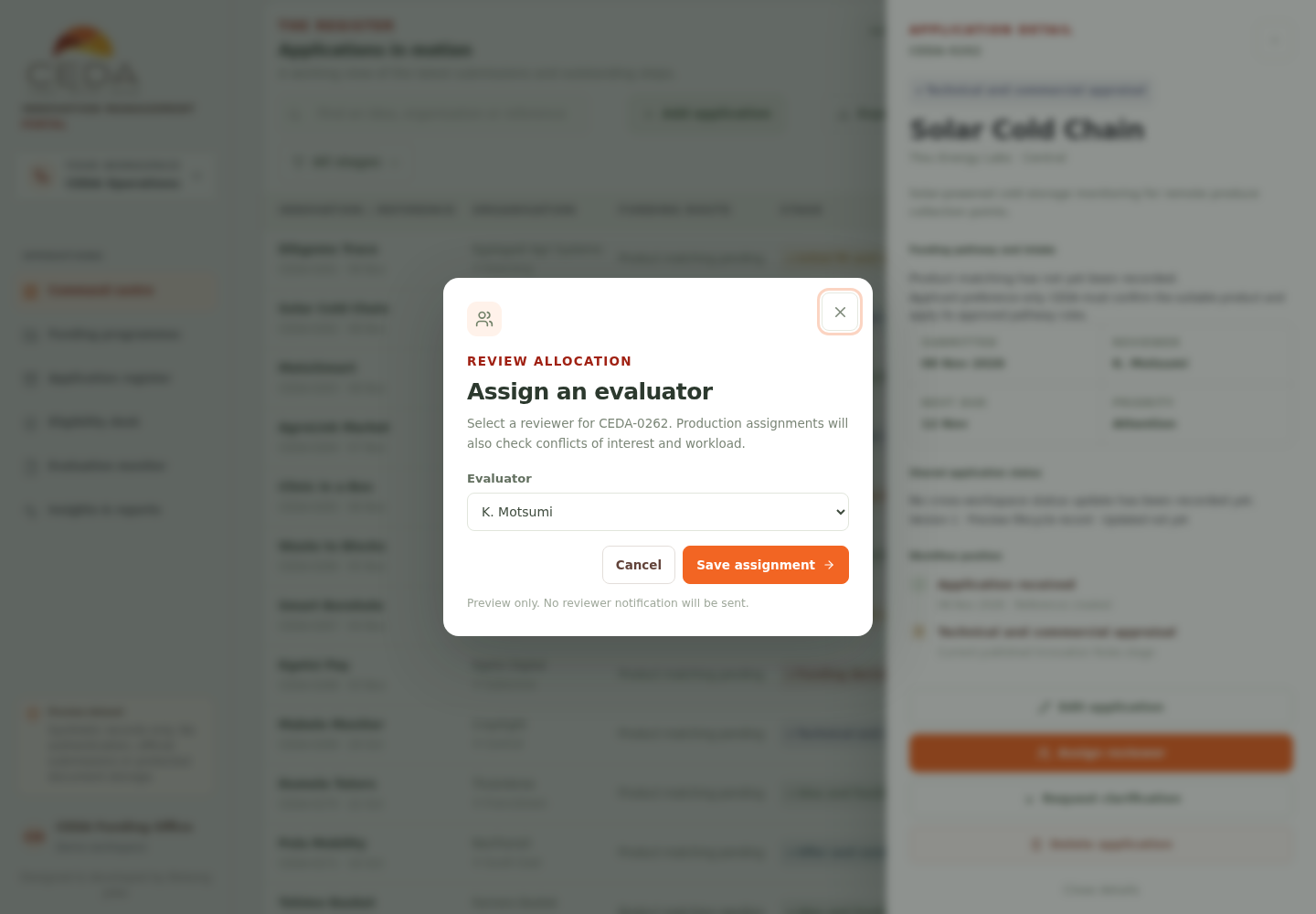
For version-pinned allocation across multiple evaluators, use the dedicated Evaluator assignments workspace instead.
6. Other application actions
The detail drawer can also offer Edit application, Delete application and Close details. Edit changes the local sample profile. Deletion removes the synthetic record from the register and charts. The prototype does not provide an official record-recovery service.
Policy and production boundary
The eligibility outcome selector demonstrates a workflow interaction; it does not determine CEDA policy. Use the approved pathway-specific conditions and evidence requirements configured through Innovation Rules. Production needs authorised reviewer roles, durable decisions, evidence retention, controlled applicant communications and server-side audit.