Funding programmes and intake setup
A funding programme intake groups the sample applications that appear in the Operations dashboard. The preview supports Ongoing and Windowed intake modes.
1. Create an intake
- Open the Operations workspace.
- Select Create funding programme intake in the top action row.
- Enter a clear Funding intake name.
- Choose Ongoing or Windowed.
- Select Create draft intake.
- Confirm that the new intake appears in the funding-programme filter and Current Funding Programme panel.
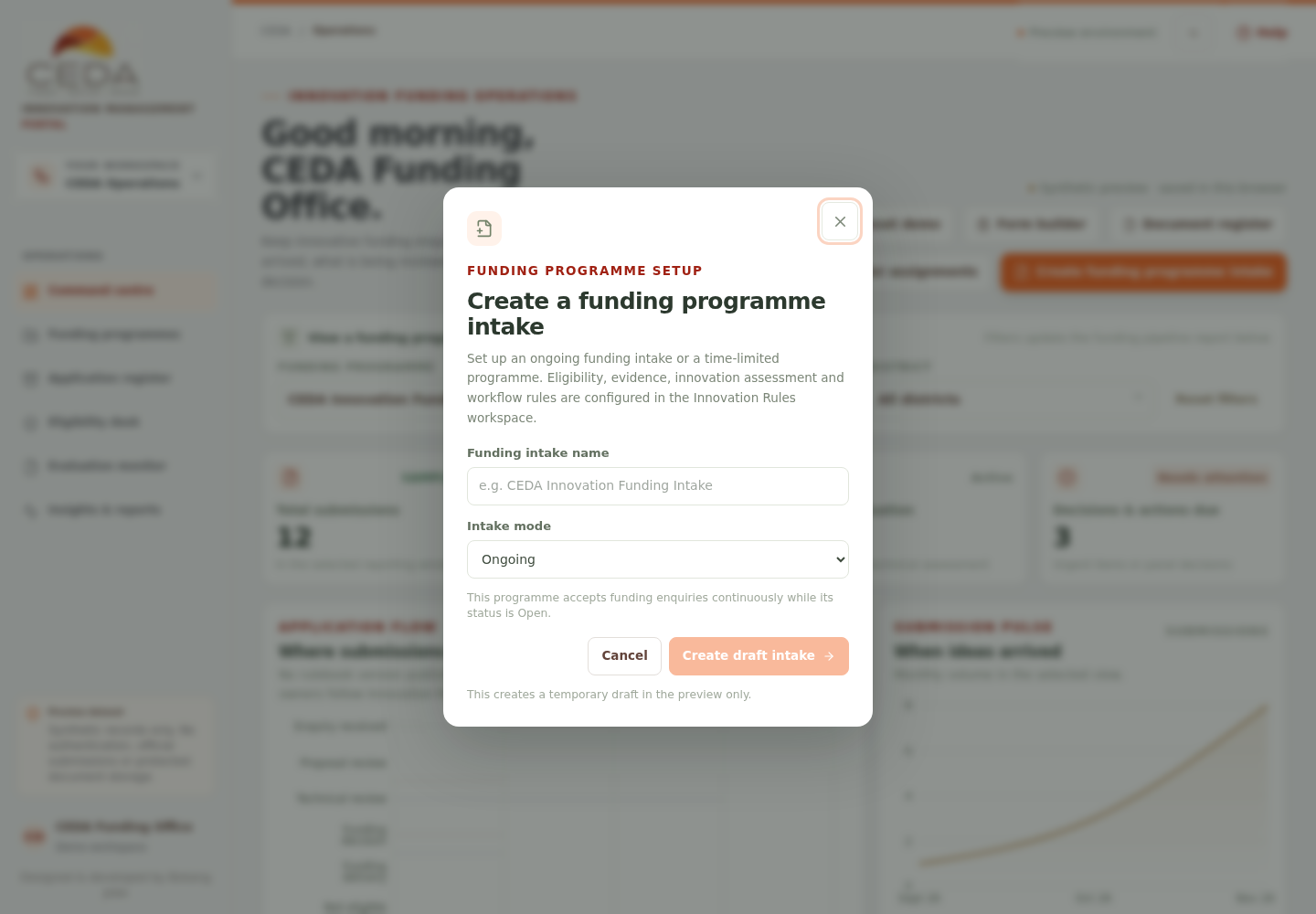
Ongoing accepts enquiries continuously while the programme status is Open. It does not require a closing date.
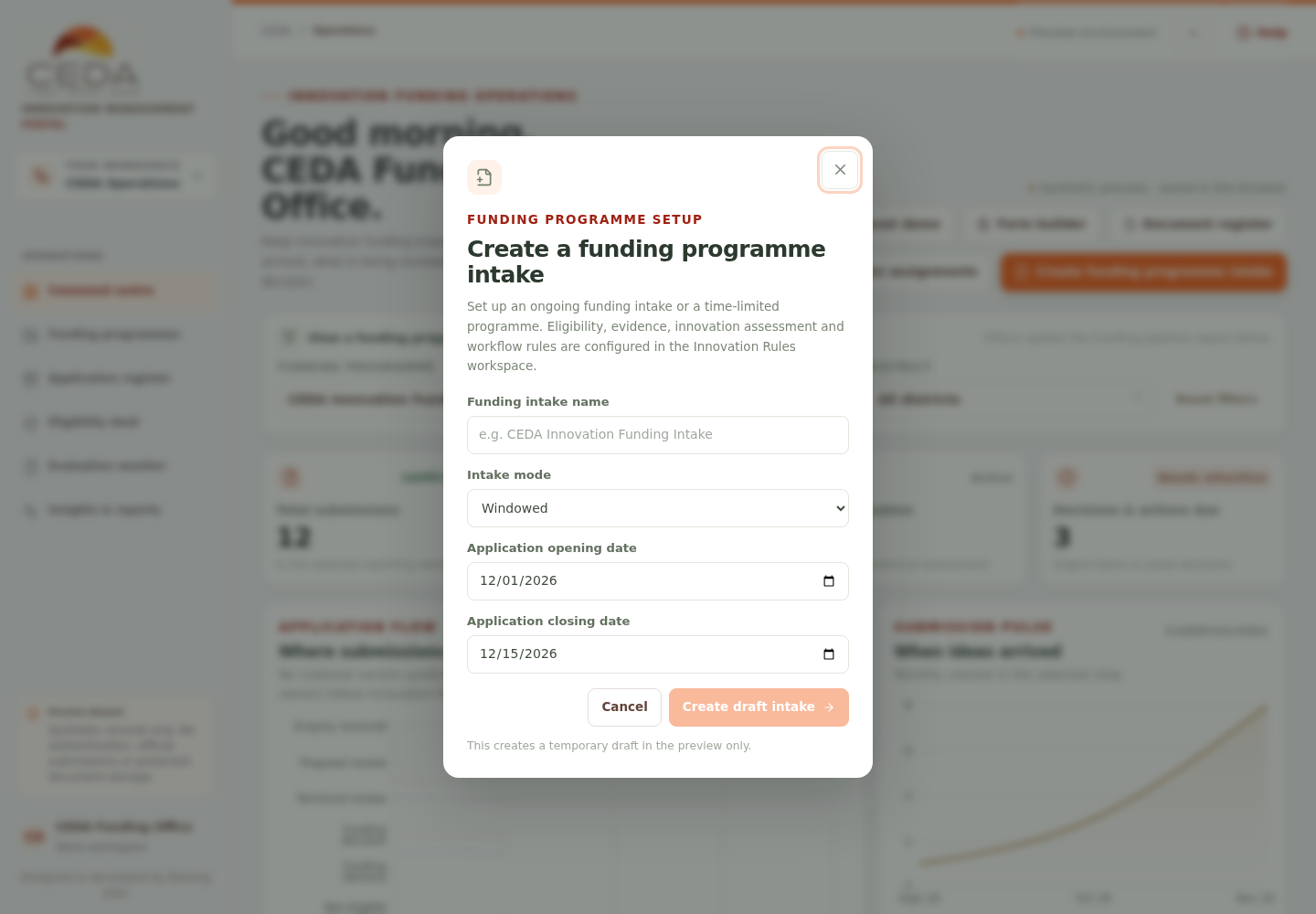
Windowed requires both an application opening date and closing date. The closing date must be later than the opening date.
Creating an intake saves a draft in this browser's preview data. It does not publish a real CEDA funding opportunity, open an official application form or notify applicants.
2. Understand the Current Funding Programme panel
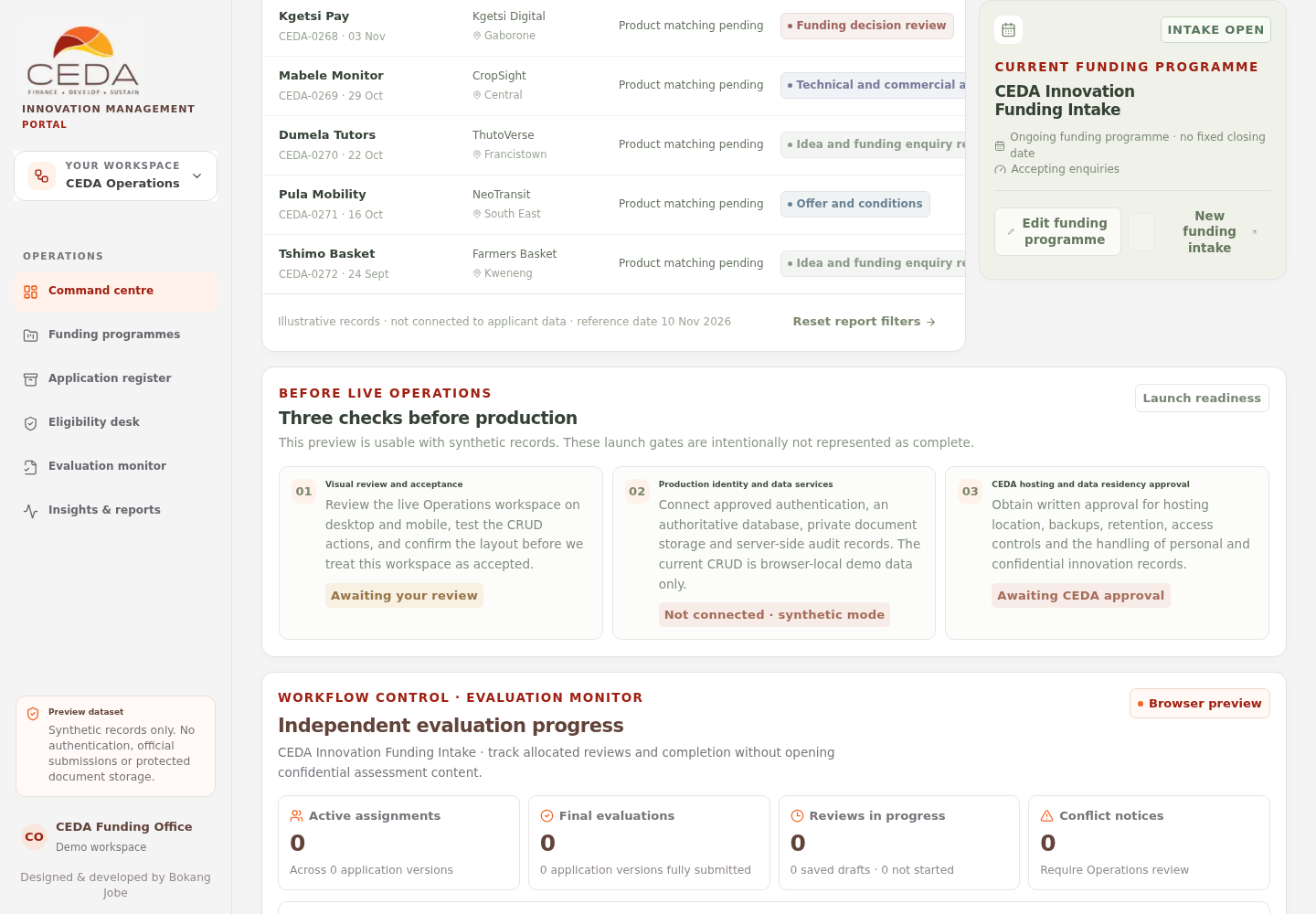
The panel displays the selected programme's name and state. It also shows whether the intake is ongoing or windowed and, for a windowed intake, its dates and elapsed-window progress.
3. Edit an intake
- Navigate to Funding programmes in the left navigation.
- In Current Funding Programme, select Edit funding programme.
- Update the Funding intake name if required.
- Set Intake mode to Ongoing or Windowed.
- For a Windowed intake, enter the opening and closing dates.
- Set Intake status to Open, Draft or Closed.
- Select Save funding programme.
- Confirm that the panel reflects the updated values.
The edit form includes a funding-intake name, intake mode, status and—when Windowed—opening and closing dates. Existing sample applications remain linked to the intake when its details are edited. Changes are saved in the current browser only.
4. Delete an intake
The delete control appears in the Current Funding Programme panel. The preview must always retain at least one funding intake, so the delete control is disabled when the selected intake is the only one. Create another synthetic intake before testing deletion.
When deletion is available, review the confirmation carefully: it removes the selected intake and all synthetic applications linked to it. The action affects local demo data only and cannot be undone unless the demo is reset.
5. Keep programme setup separate from policy rules
Eligibility, evidence requirements, innovation assessment and workflow rules are configured in the separate Innovation Rules workspace. Creating or editing an Operations intake does not approve or replace those policy settings. Review the published rulebook version shown above the application-flow chart where one is available.
Use Innovation Rules to configure the pathway-specific rules that guide assessment.