Operations command centre
The Operations workspace is the CEDA Funding Office's working view for managing illustrative funding intakes and the sample applications moving through their workflow.
Open the Operations preview.
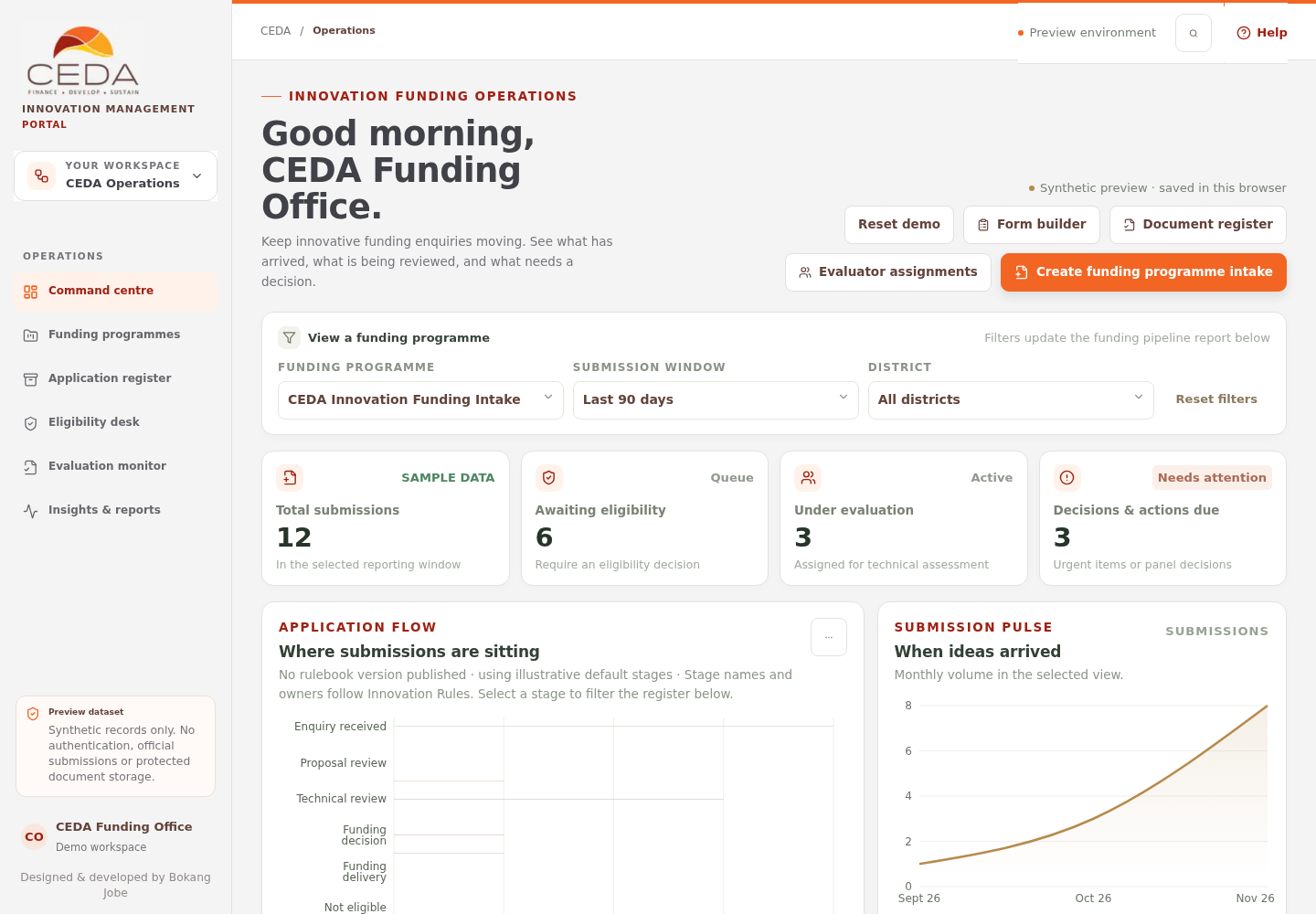
The workspace uses fictional sample applications and browser-local demo records. It is not connected to official CEDA applications, a central database, secure document storage, applicant notifications or production authentication. Use invented data only.
1. Get oriented
The command centre has five main areas:
| Area | What it does |
|---|---|
| Left navigation | Moves between Command centre, Funding programmes, Application register, Eligibility desk, Evaluation monitor and Insights & reports |
| Top action row | Opens Form builder, Document register, Funding evidence register, Evaluator assignments, Funding delivery and Create funding programme intake; Reset demo restores the original sample set |
| Funding-programme filters | Selects a programme, submission window and district for the reporting view |
| Summary and charts | Shows submission totals, eligibility queue, evaluation volume, due actions, workflow distribution and monthly submission pulse |
| Register and attention panels | Lists applications in motion and flags records awaiting eligibility or priority follow-up |
2. Use the top action row
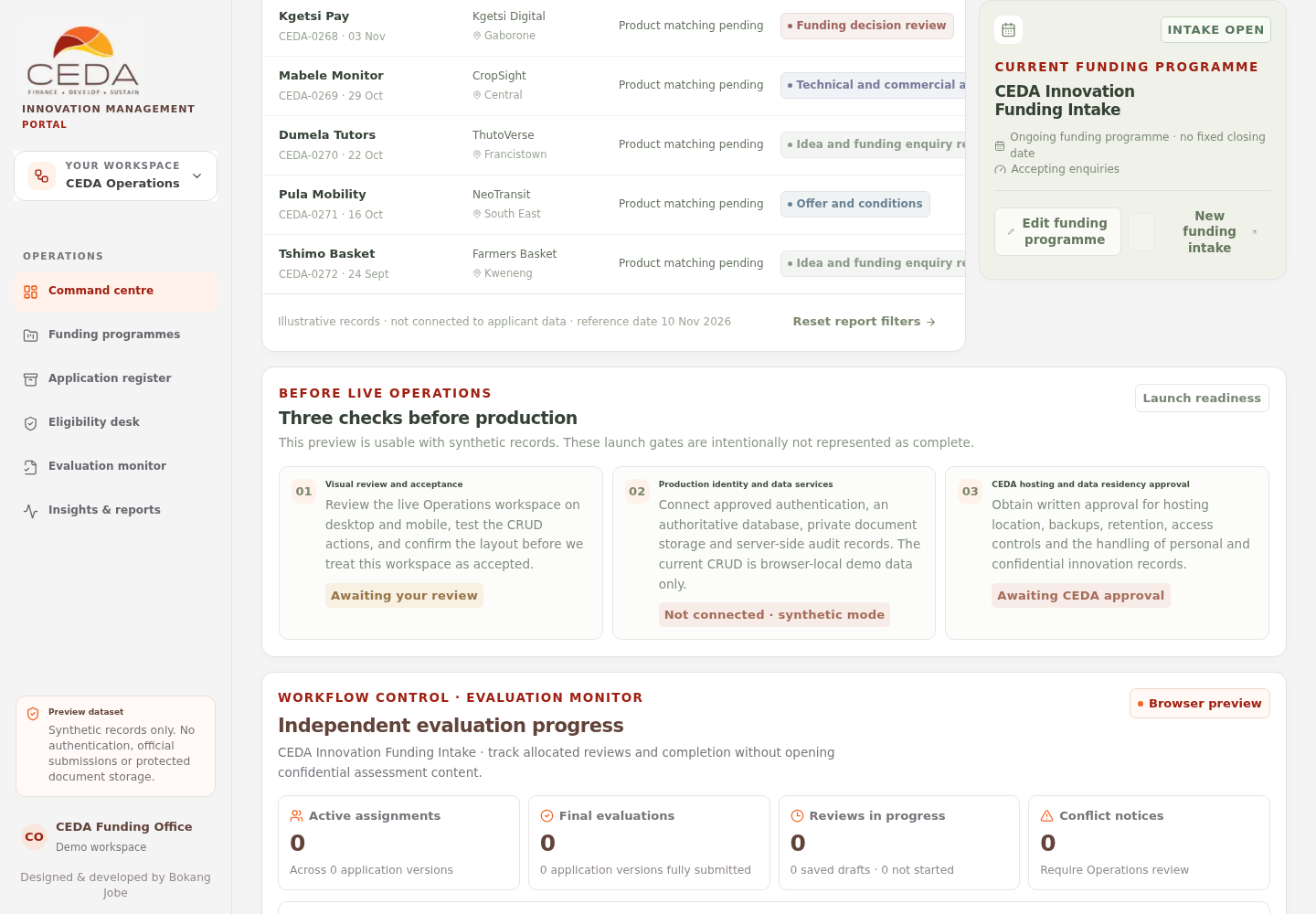
- Form builder opens the Funding Enquiry Form Studio. See Build and publish a funding enquiry form.
- Document register opens the submitted-document review workspace. See Review documents in the Document register.
- Evaluator assignments opens version-pinned reviewer allocation. See Evaluator assignments and monitoring.
- Funding delivery opens the post-adjudication desk for cases with a completed selected panel outcome. It records a separate approval reference, offer response, contract, conditions, disbursement tranches and monitoring milestones. See Funding delivery and portfolio follow-through.
- Funding evidence register aggregates acceptance, condition and milestone evidence across funding cases. It provides reviewer workload queues, due-date tracking, retention metadata, legal-hold flags and CSV/JSON extracts. See Funding evidence register.
- Create funding programme intake creates a synthetic programme draft. See Funding programmes and intake setup.
- Reset demo opens a destructive confirmation to restore the original sample funding intake and 12 illustrative applications.
3. Filter the reporting view
Use the View a funding programme controls to select the funding programme, submission window and district. The summary cards, charts, register and attention queues respond to the current selection.
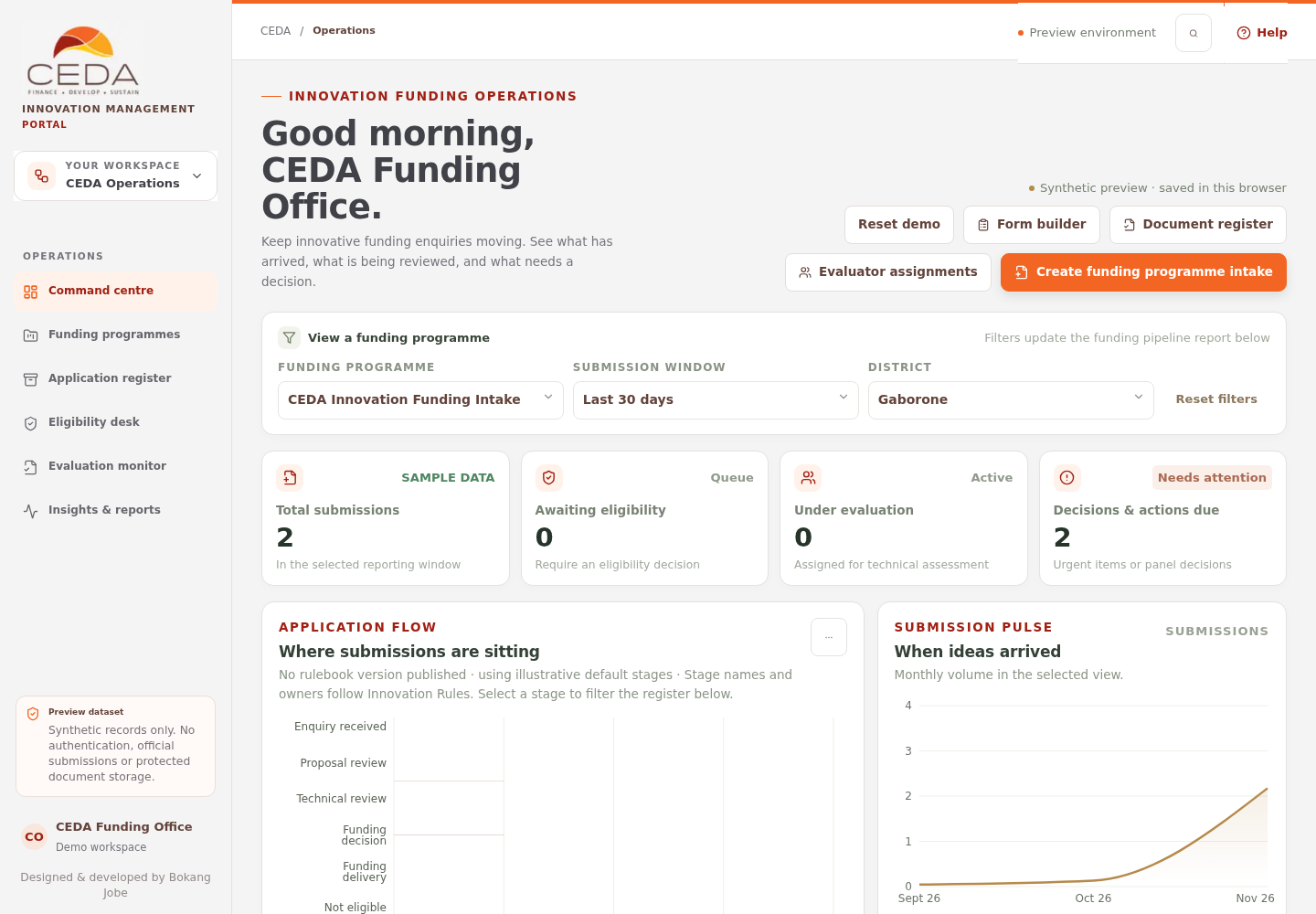
Select a workflow-stage bar or legend item in Where submissions are sitting to narrow the register to that stage. Select the stage again or clear the chart filter to return to all stages.
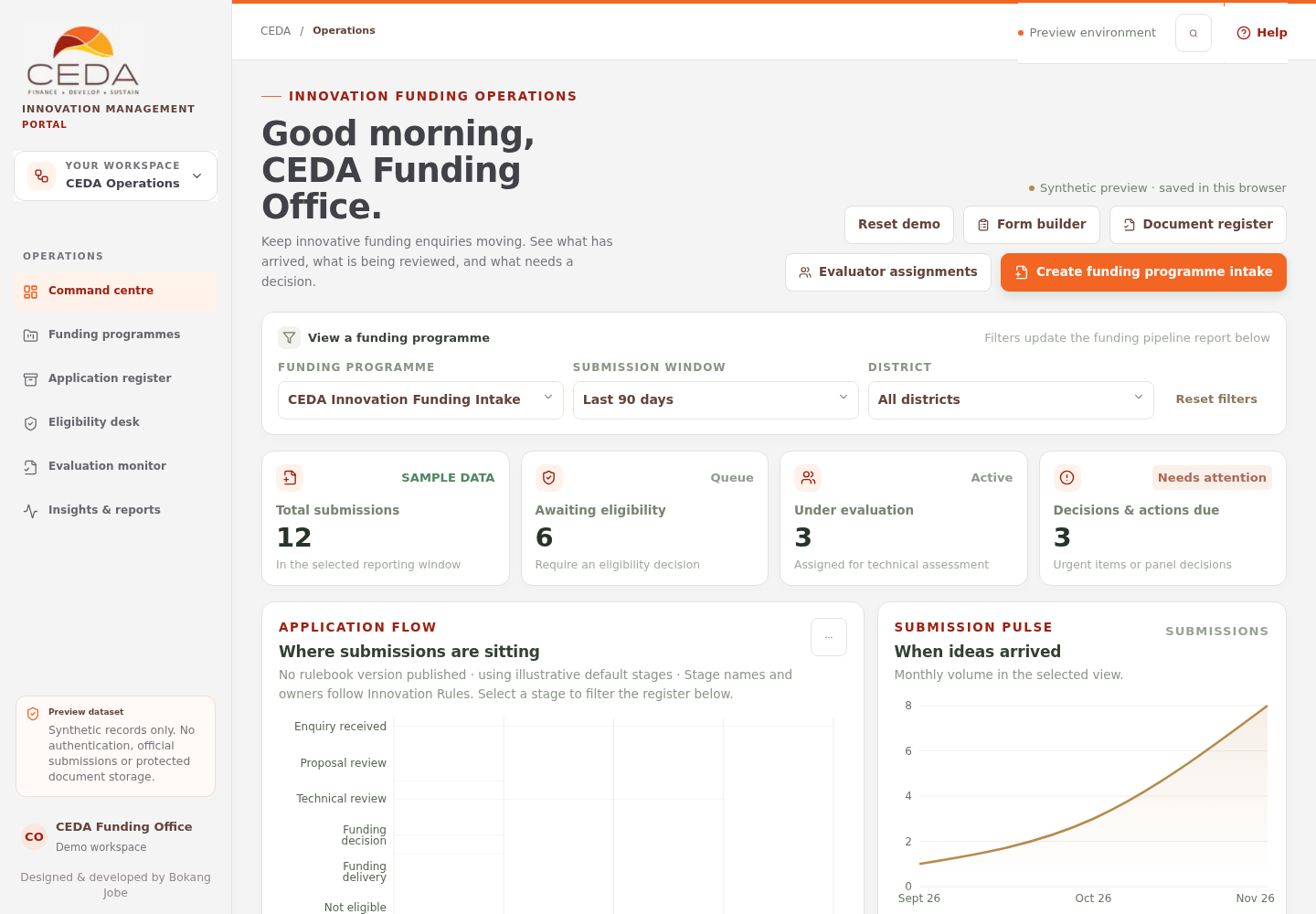
See Filters and reports for the step-by-step filter and export instructions.
4. Work with the application register
The Applications in motion table shows the innovation and reference, organisation, funding route, current stage, assigned reviewer and next due item. Select a row to open its detail drawer. Use Add application to create a fictional test record or Export CSV to download the currently filtered list.
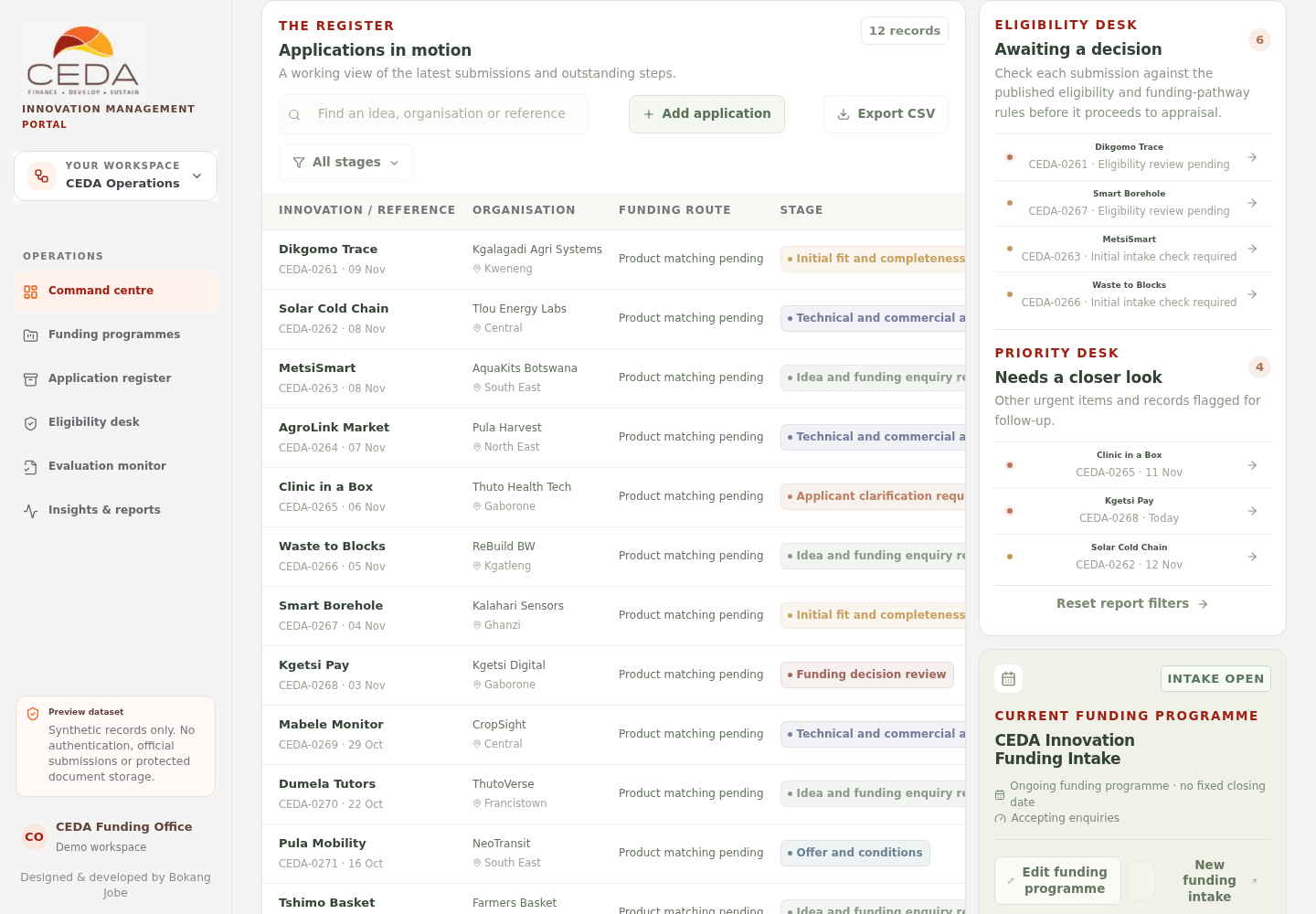
See Application register for search, add, edit, export and record-detail actions.
5. Monitor outstanding eligibility and review work
The Eligibility desk lists applications at initial intake or screening stages. The Priority desk highlights other records marked Attention or Urgent. The Evaluation Monitor reports assigned, submitted, outstanding and conflicted reviews without exposing confidential evaluator assessment content.
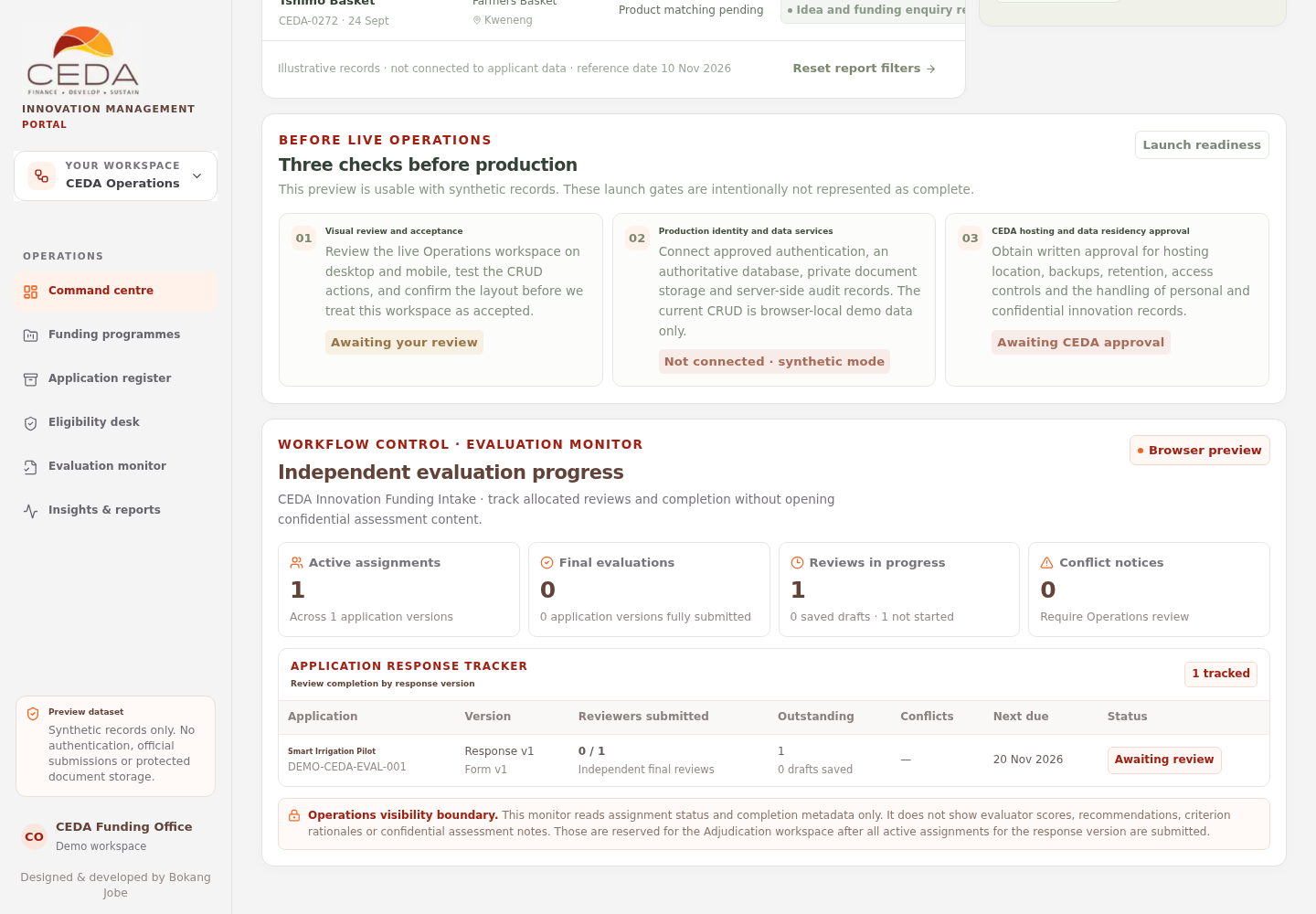
See Eligibility and application actions and Evaluator assignments and monitoring.
6. Check the current funding programme
The Current funding programme panel shows the selected intake's name, status, operating mode and opening or closing date where applicable. It provides edit and new-intake actions. The delete control is disabled when only one funding intake remains.
7. Understand the production boundary
The page includes a Three checks before production panel. Visual review, production identity/data services, and CEDA hosting and data-residency approval remain launch gates. The presence of a functional preview is not evidence that these production services are connected.