Documents and sample submission
This guide explains the Applicant preview's supporting-document controls and final confirmation. It does not describe an official CEDA submission service.
Selected file bytes are stored in the current browser profile's IndexedDB. They are not sent to CEDA, stored in CEDA-controlled private object storage, scanned for malware or available on another device. Use only harmless synthetic test files with fictional names and content.
The screenshot sequence below shows a test browser after Operations published a funding-intake form. In a clean browser profile with no published version, the Supporting documents step is not present and final sample submission remains disabled.
1. Review the document requirements
When Operations publishes document requirements with the funding-intake form, the Applicant stepper inserts a Supporting documents step.
For each visible requirement, review:
- document name and applicant instructions;
- whether the document is Required or Optional;
- accepted filename extensions;
- maximum file size per file; and
- maximum number of files allowed.
A requirement can be conditional on an earlier answer. Only applicable requirements are shown. If the published form contains no document requirements, no document upload is needed for that form version.
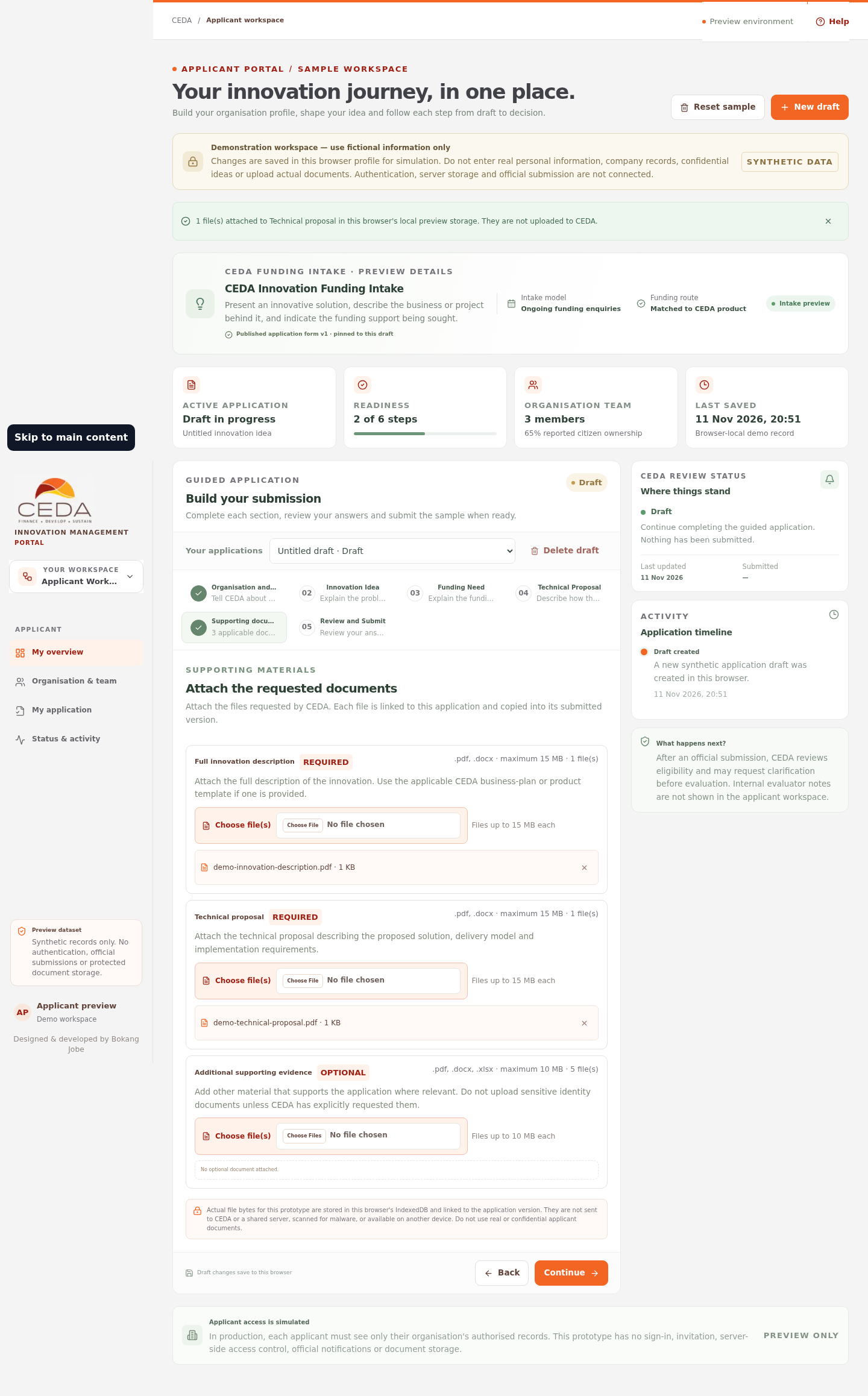
2. Select a synthetic test file
- Open the Supporting documents step when it is present.
- Locate the document requirement you want to test.
- Select Choose file(s).
- Choose a harmless synthetic file that meets the displayed extension, size and file-count limits.
- Confirm that the selected filename and file size appear below the requirement.
- Repeat for the other applicable requirements.
The screenshot shows one example of the selected-file state. The Applicant preview checks filename extension, file size and file count. These are client-side usability checks; they do not inspect file contents, establish authenticity or scan for malware.
3. Understand applicant-side document review
After Operations records a sample document review in the same browser profile, the Applicant workspace can display:
- Accepted by Operations, with the review note and review date where supplied; or
- Replacement requested by Operations, with the reviewer note and review date.
A submitted document is locked against direct changes. When a replacement is requested, the matching upload control becomes available for the new file. Select the replacement and choose Submit replacement files. The preview creates a new linked application version and retains the earlier version's file reference for version history.
This is a local prototype loop. It does not send an email or official notification. See Review documents in the Document register for the Operations-side steps.
4. Review the application
- Select the Review & submit section.
- Read the application preview, including the organisation, innovation and technical proposal details.
- For each repeatable table, check every numbered row and the value shown beside each configured column label.
- Check the displayed document filenames where the form has file requirements.
- Resolve any missing required questions or documents shown by the readiness stepper.
- Review the declarations before opening the final confirmation.
Read repeatable-table answers
A published form can include repeatable tables, such as a list of shareholders, team members, project activities or equipment. The application preview presents each saved entry as a numbered row and uses the column labels configured by Operations. It does not expose the technical storage keys used behind the form.
For example, a row is presented in a readable form such as Row 1 — Full name: Sample person · Ownership: 40%. Review the labels and values together and check that every relevant entry has been included.
The starter form can include a required applicant declaration question. The page also displays three separate preview acknowledgements: Information accuracy, Funding terms acknowledgement and Demo privacy notice. The privacy declaration is a reminder to use fictional information only; it is not a production privacy-consent mechanism.
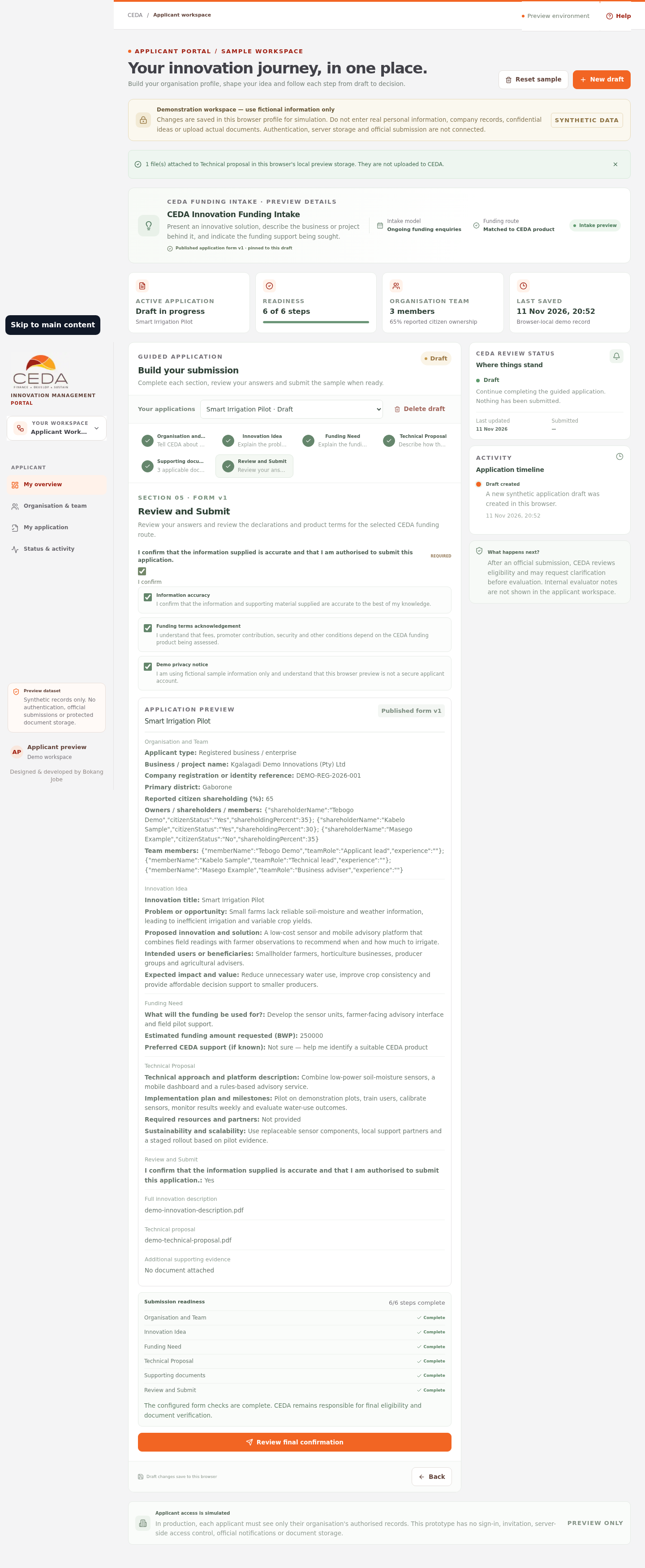
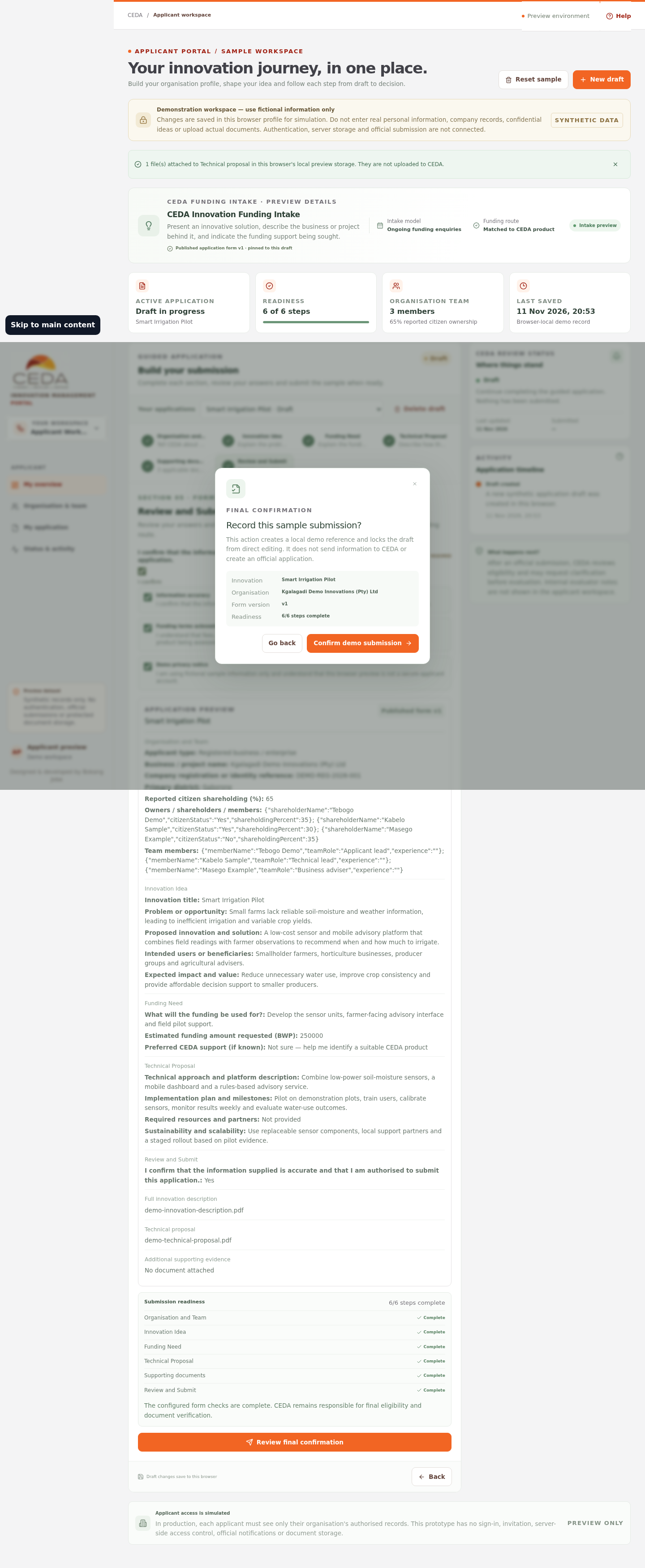
5. Record a sample submission
- When the readiness checks and required declarations are complete, select Review final confirmation.
- Read the confirmation dialog. It states that the action creates a local demo reference and locks the draft, and that it does not send information to CEDA.
- Select Confirm demo submission to record the sample.
- Review the receipt panel and the application status.
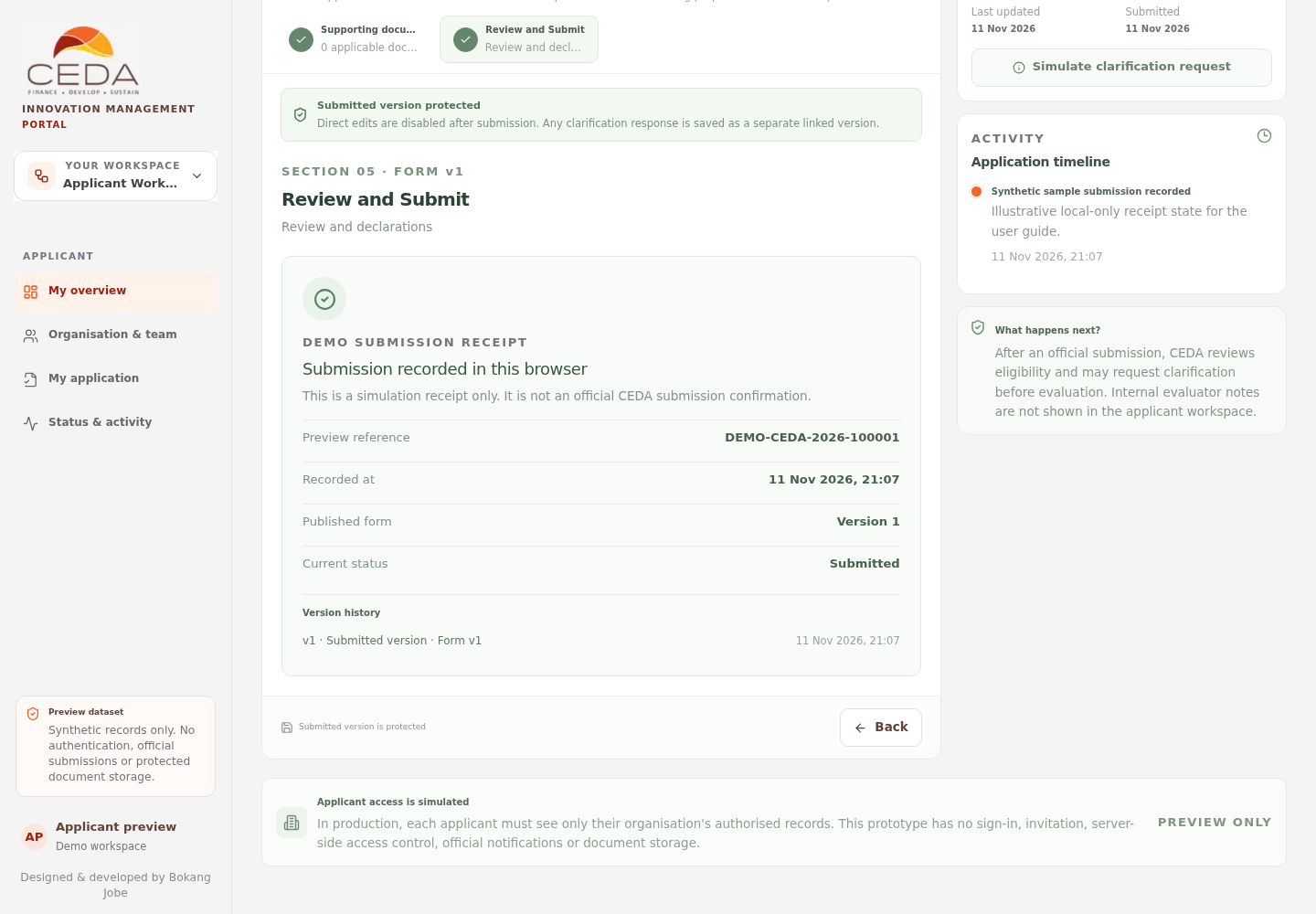
The reference and recorded time generated after confirmation are preview values. They are not an official CEDA application number, receipt timestamp or proof of submission. The submitted version is protected from direct edits in the sample journey.
6. If final submission is unavailable
The final confirmation action remains unavailable when required fields, declarations or document checks are incomplete. It is also disabled when no published funding-intake form is available in the current browser profile. In that case, the fallback sample journey remains visible for exploration, but Operations must publish a form version before the prototype permits the final sample-submission action.
No fee or payment is collected in this preview.